In the previous post I had shown How to Add Badge on Author Comment in Blogger. As result of the author badge visitor can easily find out the author comment in your blog. Beside that there are several way you can highlight author comment in your blog. One of the way is highlighting author comment in blogger by changing the background color. In this post I'm gonna show how to highlight author comment background in blogger.
If you are blogging on blogger platform then you can highlight author comment by making change in background color. As a result of the trick the author comment of your blog will have different background color and border that will make it different from other comment. To make this change you just need to add a simple code in your blog. Lets see the procedure...
Demo:

Warning: Before doing any kind of customization on your site's HTML page, I will recommend you to backup your site Template. To know more about Template backup Read This Post.
Highlight Author Comment in Blogger:
If you are blogging on blogger platform then you can highlight author comment by making change in background color. As a result of the trick the author comment of your blog will have different background color and border that will make it different from other comment. To make this change you just need to add a simple code in your blog. Lets see the procedure...
Demo:
Warning: Before doing any kind of customization on your site's HTML page, I will recommend you to backup your site Template. To know more about Template backup Read This Post.
Highlight Author Comment in Blogger:
- First Sign into your Blogger Account and go to Dashboard.
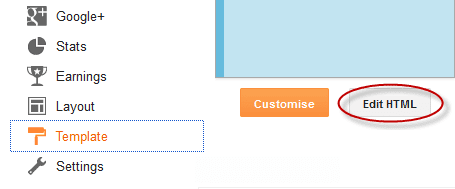
- Then click on Template and then click on Edit HTML button. You will land on the HTML page.
- Here in the HTML page find </body> tag and Paste the following code just Above it.
- Now click on Save Template button to apply it.
<script src='http://code.jquery.com/jquery-latest.js'/>
<script>
$(function() {
function highlight(){
$('.user.blog-author').closest('.comment-block')
.css('border', '1px solid #FFA500')
.css('background','#F1F1F2 url("http://www.blogblog.com/1kt/transparent/white80.png")')
.css('color', '#444444')
.css('font-size', '12px')
.css('padding', '10px');
}
$(document).bind('ready scroll click', highlight);
});
</script>
<script>
$(function() {
function highlight(){
$('.user.blog-author').closest('.comment-block')
.css('border', '1px solid #FFA500')
.css('background','#F1F1F2 url("http://www.blogblog.com/1kt/transparent/white80.png")')
.css('color', '#444444')
.css('font-size', '12px')
.css('padding', '10px');
}
$(document).bind('ready scroll click', highlight);
});
</script>
Customization:
- Border:
- To increase the border size, increase 1px value.
- To change border style, change solid to dotted, dashed, inset, outset etc.
- To change the border color, change #FFA500 code. (Use this Code Generator)
- Background:
- To change the background color, change #F1F1F2 code. (Use this Code Generator)
- To change the background image, Replace this URL http://www.blogblog.com/1kt/transparent/white80.png with your image URL.
- Font:
- To change the font color, change #444444 code. (Use this Code Generator)
- To change the font size, change the font size value '12px'.
Stay with www.iTTimebd.com for more IT related Post