Showing posts with label blog. Show all posts

Tuesday, February 3, 2015

How to Customize Blogger Image Lightbox!

If you are blogging on Blogger platform then you can show your blog's images in light-box. There is an option in Blogger settings to showcase it's images in light-box. As a result of the image light-box, when you click any image on your blog that images will open in an overlay on top of your blog. If your post has multiple images, they will appear as thumbnails along the bottom.But sometimes you may have wanted to change the default design of blogger image light-box. If so, then you are in the wright post. In this post I am gonna show how to customize blogger image light box.

Blogger Image

Above image is the example of the default Blogger Image Light-box. If you don't like this design then you can customize it on your own taste. The CSS code that I am sharing, by adding it to your blog you will be able to change the entire look of the modal window: Background Color, Border of the Image, The Bar showing the thumbnail, Text within it, Close button and the transparency. All you have to do is to overwrite the default design and change it with yours. Lets see how to do the trick.

Warning: Before doing any kind of customization on your site's HTML page, I will recommend you to backup your site Template. To know more about Template backup Read This Post.

Customizing  Blogger Image Lightbox:
  • First Sign into your Blogger Account and go to Dashboard.
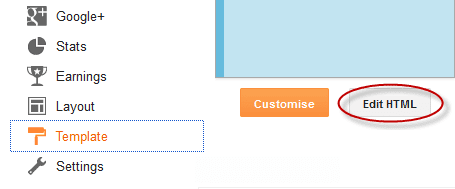
  • Then click on Template and then click on Edit HTML button. You will land on the HTML page.
  • Here in the HTML page find </head> tag and Paste the following code just Above it.
  <style>  
 /* Background Color */  
 .CSS_LIGHTBOX_BG_MASK {  
 background-color: #ffffff !important;  
 background-image: url(image-url-address) !important;  
 opacity: 0.8 !important;  
 filter: alpha(opacity=90) !important;  
 }  
 /* Images Border */  
 .CSS_LIGHTBOX_SCALED_IMAGE_IMG {  
 outline: 0px solid #fff !important;  
 -webkit-border-radius: 10px;  
 -moz-border-radius: 10px;  
 border-radius: 10px;  
 -webkit-box-shadow: 0px 0px 5px #000000;  
 -moz-box-shadow: 0px 0px 5px #000000;  
 box-shadow: 0px 0px 5px #000000;  
 }  
 /* Close Button */  
 .CSS_LIGHTBOX_BTN_CLOSE {  
 background: url(image-url-address) no-repeat !important;  
 width: 24px !important;  
 height: 24px !important;  
 }  
 /* Thumbnails Bar Color */  
 .CSS_LIGHTBOX_FILMSTRIP {  
 background-color: #eaeaea !important;  
 }  
 /* Text Color */  
 .CSS_LIGHTBOX_ATTRIBUTION_INFO, .CSS_LIGHTBOX_ATTRIBUTION_LINK {  
 color: #000 !important;  
 }  
 /* Index Info (number of images) */  
 .CSS_LIGHTBOX_INDEX_INFO {  
 color: #555555 !important;  
 }  
 </style>  

Customization: The blue Text explains to which Part the code belongs to. And you can modify the area of the lightbox from that part.
  • * Background Color * - You can change the Background color of the Lightbox and also can replace the background color with an image from here. To replace the background color with an image just Replace this line image-url-address with your Image URL. Below that if you decrease the opacity: 0.8 value the background will become more transparent.
  • * Close Button * - To change the icon for Close Button just Replace this line image-url-address with your icon Image URL.
  • * Index Info (number of images) * - To change the text color of image, just change the #555555 value.

  • Finally click on Save Template button to apply the design.

That's after customizing the image light-box, now view your blog and click on any image and see the result.


Stay with www.iTTimesbd.com for more IT related post

How to Add a Widget Below First Post in Blogger!

Earlier I had shared two post important post on displaying Blogger Post on homepage - Show Blogger Posts in Gird Style and Adding Read More button to Blogger post. Now the question is why I am mentioning these posts. Actually the trick that I'm going to share in today's post very much goes with these two posts. If you are showing your Blog's posts in Gird Style or Automatic Summary then you will have to add a widget below first post to show any element like Adsense Ads. In this post I am gonna  show how to add a widget below first blogger post.


Normally you can add gadgets in your blog from the layout option, but you only can add the gadgets in that place where the design section allows you. So, if you want to add any widgets below the first blogger post then you need to add a gadget section in your Blogger Layout. By the way you can apply this gadget in any design, the above mentioned two design is not a requirement. And you can add such widget by using a simple HTML code that I'm sharing.
Blogger Widgets Placement
When you will add a gadgets section and show any widget below your first post then it will be look like the above image. If you are blogging on blogger platform then you can easily add a widget in your blog as show in that image. OK let's see how to do the trick.

Warning: Before doing any kind of customization on your site's HTML page, I will recommend you to backup your site Template. To know more about Template backup Read This Post.

Adding Widget Below First Blogger Post:
  • First Sign into your Blogger Account and go to Dashboard.
  • Then click on Template and then click on Edit HTML button. You will land on the HTML page.
edit blogger template
  • Here in the HTML page find this line  <b:include data='post' name='post'/> and Just below it Paste the Following code.
  <b:if cond='data:post.isFirstPost'>  
 <div align="center" style="margin:10px auto;">  
 Here goes the code of the element you want to show  
 </div>  
 </b:if>  

  • Note: The Bold text indicates that where you will have to paste the code of the element. (eg. Adsense Ad Code)
  • Customization: The Red line in the above code is for Margin-Top and Margin-Bottom, this is in case if you want the element to move towards or away from the entire. You can also add any style like Background Color, Border etc.

  • Finally click on Save Template Button to apply it. (Preview to make sure Everything is OK)

That's it, Now view your blog and you will see that the added widget is appearing below the first post of your blog.


Stay with www.iTTimesbd.com for more IT related post
Monday, February 2, 2015

Show Blogger Post in Gird View with Thumbnail!

Recently I had shared a post on Adding Read More button with Thumbnails. And to day I am gonna show how you can Display your Blogger Blog post in Gird View Style with Thumbnail. Actually both of these Post displaying technique on Blog homepage are almost same. But the the design and the code that you will have to use for this Gird view style is different. When you apply the Gird View style in your blog the posts of your Blog will shown like the below example. Have a look at the Demo below.

Gird View Style with Thumbnail

If you are blogging on Blogger platform then you can apply this design on your Blog. As the result of the application of this Gird View style on your blog all the posts will be display as a thumbnail gird of image in homepage and archive pages. In the normal view style you can only afford to display a few posts on homepage. But in Gird view style you can display many post in a gallery with thumbnail and post title. If your blogging on Wallpaper or Photo then this style can give the maximum result. Let's see how to add this Gird view style on Blogger.


Warning: Before doing any kind of customization on your site's HTML page, I will recommend you to backup your site Template. To know more about Template backup Read This Post.

Adding Gird View Style to Blogger:
  • First Sign into your Blogger Account and go to Dashboard.
  • Then click on Template and then click on Edit HTML button. You will land on the HTML page.
edit blogger template
  • Here in the HTML page find </head> tag and Paste the following code just Above it.
 <script src="http://code.jquery.com/jquery-1.9.1.js"></script>  
 <script src="http://code.jquery.com/jquery-migrate-1.1.0.js"></script>  
 <b:if cond='data:blog.pageType == &quot;index&quot;'>  
 <script type='text/javascript'>//<![CDATA[  
 $(document).ready(function() {  
   var width = 200;  
   var height = 170;  
   var placeholder = 'https://blogger.googleusercontent.com/img/b/R29vZ2xl/AVvXsEiLtYbtwt3ER4nyweaoCEQO8yCaO02IZeH__KQeR5c9nAVH5LGodMLObauF2TZ_QFGGdfdtHXIb5z2e67nUCB_M5n8ArcTGx_Szhkj0kV4ogdqw2S3VzTIdbo5eoIYtCfeyu_-jsN-6hwY/s1600/no-thumb.png';  
   var margins = "0px 0px 10px 10px";  
   var fitThumb = 1;  
   var titleTopPadding = 5;  
   var titleBottomPadding = 8;  
   var titleLeftRightPadding = 5;  
   var titlePadding = titleTopPadding + 'px ' + titleLeftRightPadding + 'px ' + titleBottomPadding + 'px ' + titleLeftRightPadding + 'px';  
   $('.post-body').each(function(n, wrapper) {  
     var wrapper = $(wrapper);  
     var image = $(wrapper).find('img').first();  
     var link = wrapper.parent().find('h3 a');  
     var linkURL = link.attr('href');  
     var linkTitle = link.text();  
     $(link).remove();  
     wrapper.empty();  
     if (image.attr('src')) {  
       var thumbHeight = image.attr('height');  
       var thumbWidth = image.attr('width');  
       var thumbParent = $(image).parent();  
       wrapper.append(thumbParent);  
       if (fitThumb) {  
         image.attr({  
           src: image.attr('src').replace(/s\B\d{3,4}/, 's' + width + '-c')  
           });  
         image.attr('width', width).attr('height', height);  
       } else {  
         image.attr({  
           src: image.attr('src').replace(/s\B\d{3,4}/, 's' + width)  
           });  
         image.attr('width', width);  
         var changeHeight = (thumbHeight / thumbWidth * width).toFixed(0);  
         image.attr('height', changeHeight);  
       }  
     } else {  
       var image = $('<img>').attr('src', placeholder).attr('height', height).attr('width', width);  
       var thumbParent = $('<a>').append(image).appendTo(wrapper);  
     }  
     thumbParent.attr('href', linkURL).css('clear', 'none').css('margin-left', '0').css('margin-right', '0').addClass('postThumbnail');  
     var thumbTitle = $('<div>').prepend(linkTitle).css('padding', titlePadding).css('opacity', '0.9').css('filter', 'alpha(opacity=0.9)').css('width', width).appendTo(thumbParent);  
     var ptitleHeight = thumbTitle.height();  
     var summary = parseInt(ptitleHeight) + parseInt(titleTopPadding) + parseInt(titleBottomPadding);  
     thumbTitle.css('margin-top', '-' + summary + 'px');  
     wrapper.css('float', 'left').css('height', height).css('width', width).css('margin', margins).css('overflow', 'hidden');  
   });  
   $('#blog-pager').css('clear', 'both');  
 });  
 function hideLightbox() {  
   var images = document.getElementsByTagName('img');  
   for (var i = 0; i < images.length;++i) {  
     images[i].onmouseover = function() {  
       var html = this.parentNode.innerHTML;  
       this.parentNode.innerHTML = html;  
       this.onmouseover = null;  
     };  
   }  
 }  
 if (window.addEventListener) {  
   window.addEventListener('load', hideLightbox, undefined);  
 } else {  
   window.attachEvent('onload', hideLightbox);  
 }  
 //]]>  
 </script>  
 <style>  
 .post {  
   border-bottom: 0 dotted #E6E6E6;  
   margin-bottom: 0;  
   padding-bottom: 0;  
 }  
 h2,.post-footer {  
   display: none;  
 }  
 a.postThumbnail div {  
   text-decoration: none;  
   color: #fff;  
   font-size: 12px;  
   font-weight: bold;  
   text-transform: capitalize;  
   background: rgb(125,126,125);  
  /* Old browsers */  
   background: -moz-linear-gradient(top, rgba(125,126,125,1) 0%, rgba(14,14,14,1) 100%);  
   background: -webkit-gradient(linear, left top, left bottom, color-stop(0%,rgba(125,126,125,1)), color-stop(100%,rgba(14,14,14,1)));  
  /* Chrome,Safari4+ */  
   background: -webkit-linear-gradient(top, rgba(125,126,125,1) 0%,rgba(14,14,14,1) 100%);  
   background: -o-linear-gradient(top, rgba(125,126,125,1) 0%,rgba(14,14,14,1) 100%);  
   background: -ms-linear-gradient(top, rgba(125,126,125,1) 0%,rgba(14,14,14,1) 100%);  
   background: linear-gradient(to bottom, rgba(125,126,125,1) 0%,rgba(14,14,14,1) 100%);  
   filter: progid:DXImageTransform.Microsoft.gradient( startColorstr=&#39;  
   #7d7e7d&#39;, endColorstr=&#39;#0e0e0e&#39;,GradientType=0 );  
 }  
 a.postThumbnail:hover div {  
   display: block;  
 }  
 .post-body img {  
   background-color: transparent;  
   border: 1px solid transparent;  
   padding: 0px;  
   -webkit-border-radius: 12px;  
   -moz-border-radius: 12px;  
   border-radius: 12px;  
   opacity: 1;  
   transition: opacity .25s ease-in-out;  
   -moz-transition: opacity .25s ease-in-out;  
   -webkit-transition: opacity .25s ease-in-out;  
 }  
 .post-body img:hover {  
   -ms-filter: &quot;  
   progid: DXImageTransform.Microsoft.Alpha(Opacity=70)&quot;  
   ;  
 filter: alpha(opacity=70);  
   -moz-opacity: 0.7;  
   -khtml-opacity: 0.7;  
   opacity: 0.7;  
 }  
 </style>  
 </b:if>  

Customization:
  • To modify the Thumbnail size, change width = 200 and height = 170 value.
  •  Replace the image URL in Red with your own, to change the default thumbnail when there are no image.

  • Finally click on Save Template button to apply the Gird view style.

That's it, Now view your blog and you will see that your blog's posts are showing in nice Gird View style.


Stay with www.iTTimesbd.com for more IT related post

Sunday, February 1, 2015

Making a Gadget Visible only to the Blog Admin!

Blogger Tips and Tricks
There are several post I had shared related to Blogger tips and tricks earlier in this site. And today I'm gonna share another important post on Blogger. You may have already get the idea about this post content from the title of this post. Actually this post is very much exclusive as because the trick that I am share in this post is mostly used by the Professional and high profile website. So, lets know something more about Making a Gadget Visible only to the Blog Administrator.

A Website or Blog Admin use several gadgets on his site. But sometime you may want to make any one of your site's gadgets only visible to you and not to your visitor. Basically when the admin set any kinds of Survey or Countdown gadgets on his site he don't want anyone else to see that gadgets until the final result is ready. As the best example of this trick I can take the name of Online Voting gadgets used Online News site.


Actually the procedure of hiding a gadget on Blogger is very simple. You just have to add two lines to the gadget that you want to hide. And you will have to add the code inside your Blogger Template. OK lets see how to do the trick.

Warning: Before doing any kind of customization on your site's HTML page, I will recommend you to backup your site Template. To know more about Template backup Read This Post

  • First Sign into your Blogger Account and go to Dashboard.
  • Then click on Template and then click on Edit HTML button. You will land on the HTML page.
  • Here in this HTML page Search for the Gadget code that you want to hide.
Example: A HTML/JavaScript code will be like the following one.
 <b:widget id='HTML1' locked='false' title='' type='HTML'>  
 <b:includable id='main'>  
 <span class='item-control blog-admin'>  
 <!-- only display title if it's non-empty -->  
 <b:if cond='data:title != &quot;&quot;'>  
 <h2 class='title'><data:title/></h2>  
 </b:if>  
 <div class='widget-content'>  
 <data:content/>  
 </div>  
 <b:include name='quickedit'/>  
 </span>  
 </b:includable>  
 </b:widget> 

Note: So, all you have to add the Red line the gadget as shown in the above. Now all the gadget have the same structure like the above example, but it will be easier to guide you, just place the first code in Red just after <b:includable id='main'> and second Red code just before </b:includable>. To look look inside the widget's code, click on the sideways arrow next to the widget's id. 

  • Finally click on Save Template button to apply the change.


As the application of this change when you view your Blog without signing in that gadget will not be visible to you, but as soon as you sign in you will see that it is visible to you.


Stay with www.iTTimesbd.com for more IT related post

Wednesday, January 28, 2015

Add Auto Read More Button with Thumbnail to Blogger!

Read More button or widget is one of the most popular and important design of blog or website. Actually this trick is important because it increase your loading speed. Because when you add Auto Read More button in your blog then the posts of your blog will be shown in the homepage with Small Summary, Thumbnail Image and a Read More link. In this post I'm gonna show how to add Read More button with Thumbnail to Blogger. See the below demo image.
Read More Button With Thumbnail 
If you are blogging on Blogger platform then you can easily add Auto Read More button in your blog by adding some simple in your blog. There several codes available by which add Read More button in your Blog. But the code that I am sharing, here you can customize the Post Summary Size, Thumbnail Size as you want. This Automatic Read More button with Thumbnail will be shown in Homepage, Category Page and Archive Page. Lets see how to add this Read More Button in Blogger.

Warning: Before doing any kind of customization on your site's HTML page, I will recommend you to backup your site Template. To know more about Template backup Read This Post.

Adding Read Mere Button to Blogger:
  • First Sign into your Blogger Account and go to Dashboard.
  • Then click on Template and then click on Edit HTML button. You will land on the HTML page.
edit blogger template
  • Here in the HTML page find this code <data:post.body/>
Note: You will find this code more than once but you need to stop at the third one.
  • Then Replace above code with the Following code.
 <b:if cond='data:blog.pageType != &quot;static_page&quot;'>  
 <b:if cond='data:blog.pageType != &quot;item&quot;'>  
 <div expr:id='&quot;summary&quot; + data:post.id'><data:post.body/></div>  
 <script type='text/javascript'>createSummaryAndThumb(&quot;summary<data:post.id/>&quot;,&quot;<data:post.url/>&quot;,&quot;<data:post.title/>&quot;);</script>  
  <span class='readmore' style='float:right;'><a expr:href='data:post.url'>Read More &#187;</a></span></b:if></b:if>  
 <b:if cond='data:blog.pageType == &quot;item&quot;'><data:post.body/></b:if>  
 <b:if cond='data:blog.pageType == &quot;static_page&quot;'><data:post.body/></b:if>  
Note: If you don't see any changes after completing all the steps, Please try to Replace the second <data:post.body/> also.
  • Now again find </head> and Paste the below code just Above it.
 <script type='text/javascript'>  
 posts_no_thumb_sum = 490;  
 posts_thumb_sum = 400;  
 img_thumb_height = 160;  
 img_thumb_width = 180;  
 </script>  
 <script type='text/javascript'>  
 //<![CDATA[  
 function removeHtmlTag(strx,chop){  
 if(strx.indexOf("<")!=-1)  
 {  
 var s = strx.split("<");  
 for(var i=0;i<s.length;i++){  
 if(s[i].indexOf(">")!=-1){  
 s[i] = s[i].substring(s[i].indexOf(">")+1,s[i].length);  
 }  
 }  
 strx = s.join("");  
 }  
 chop = (chop < strx.length-1) ? chop : strx.length-2;  
 while(strx.charAt(chop-1)!=' ' && strx.indexOf(' ',chop)!=-1) chop++;  
 strx = strx.substring(0,chop-1);  
 return strx+'...';  
 }  
 function createSummaryAndThumb(pID, pURL, pTITLE){  
 var div = document.getElementById(pID);  
 var imgtag = "";  
 var img = div.getElementsByTagName("img");  
 var summ = posts_no_thumb_sum;  
 if(img.length>=1) {  
 imgtag = '<span class="posts-thumb" style="float:left; margin-right: 10px;"><a href="'+ pURL +'" title="'+ pTITLE+'"><img src="'+img[0].src+'" width="'+img_thumb_width+'px" height="'+img_thumb_height+'px" /></a></span>';  
 summ = posts_thumb_sum;  
 }  
 var summary = imgtag + '<div>' + removeHtmlTag(div.innerHTML,summ) + '</div>';  
 div.innerHTML = summary;  
 }  
 //]]>  
 </script>  
 <b:if cond='data:blog.pageType != &quot;static_page&quot;'>  
 <b:if cond='data:blog.pageType != &quot;item&quot;'>  
 <style type='text/css'>  
 .post-footer {display: none;}  
 .post {margin-bottom: 10px; border-bottom: 1px dotted #E6E6E6; padding-bottom: 20px;}  
  .readmore a {text-decoration: none; }  
 </style>  
 </b:if>  
 </b:if>  

Customization: 
  •  Modify the 490 value to change the number of characters shown when there is no thumbnail. 
  • Modify the 400 value to change the number of characters shown when the post has a thumbnail.
  • To change the thumbnail size, modify height = 160 and width = 180 value. 
  • Finally click on Save Template button to apply the change.

That's it, Now view your blog and you will see that the posts are shown with Small Summary, Thumbnail Image and a Read More link.


Stay with www.iTTimesbd.com for more IT related post

Friday, November 21, 2014

How to Numbered All Comments in Blogger!

In the previous post I had shown How to add number in Blogger comments. But unfortunately that trick worked only for those blog in which threaded comment option is disabled. That means if your the threaded comment option is enabled in your blog then earlier trick will not work on your blog. If you want to enable threaded comment and number the comments as well then this post is dedicated to you. In this post I am gonna show how to number all numbered all comment in blogger.

To do this trick I am gonna use a simple CSS code. By adding this CSS code to you blog it will do following trick for your...
  • When the a general section of comment is initiating, A comment counter will be activated and the comment will start with an initial value of 1.
  • Then each time the code flow goes through a review of any level, either the original comment or a threaded comment. And it will bring in front of the comment's body the number that is the counter.
  • And finally, this is incremented in the counter.
    Adding Number to All Comments Blogger

Warning: Before doing any kind of customization on your site's HTML page, I will recommend you to backup your site Template. To know more about Template backup Read This Post.


Adding Number to All Comments in Blogger:
  • First Sign into your Blogger account and go to Dashboard.
  • Then click on Template and then click on Edit HTML button. You will land on the HTML page.
    edit blogger template
  • Here in the HTML page find ]]></b:skin> and Paste the following code just above it.
  •   .comment-thread ol {  
     counter-reset: countcomments;  
     }  
     .comment-thread li:before {  
     content: counter(countcomments,decimal);  
     counter-increment: countcomments;  
     float: right;  
     z-index: 2;  
     position:relative;  
     font-size: 22px;  
     color: #555555;  
     padding-left:10px;   
     padding-top:3px;   
     background: url(https://blogger.googleusercontent.com/img/b/R29vZ2xl/AVvXsEhmnBrf_TM2nehYrfXwawgBENSf-93kNSYyJnj0I0QWnHMDIwWCAtUz7b3vtKd1PEhV6i1Rqck3fIdHHV8plflWkWegIS0sMDawG4DzNnJfe762rYnPlTWHcaBeQh-G7gMtUtgDWAl2p1iU/s1600/comment+bubble2.png) no-repeat;  
     margin-top:7px;   
     margin-left:10px;   
     width: 50px; /*image-width size*/  
     height: 48px; /*image-height size*/   
     }  
     .comment-thread ol ol {  
     counter-reset: contrebasse;  
     }  
     .comment-thread li li:before {  
     content: counter(countcomments,decimal) "." counter(contrebasse,lower-latin);  
     counter-increment: contrebasse;  
     float: right;  
     font-size: 18px;  
     color: #666666;  
     }  
    
  • And finally click on Save Template button to apply the code.

Customization:
  • If you don't want to have bubble icon, then Red part of the above code including the image URL shown in blue color.
  • To change the comment bubble, Replace the image URL of the above code shown in blue color with your own image URL. Or you can try the image URL I had shared in the Previous Post.
  • To change the comment count position, Increase/Decrease the values (10px & 3px) of padding-left and padding-top.
  • To change the comment bubble/icon position, Increase/Decrease the values (7px & 10px) of margin-top and margin-left.


Stay with www.iTTimesbd.com for more IT related Post

How to Add Number to Blogger Comments!

Commenting is one of the best way to increase the visitors engagement with a site. Blogger has a default comment option. But it is very simple. As I always said that an attractive can attract more visitors. Beside customizing other thing you can customize blogger comments option as well. Earlier I had shared Several Post on Blogger Comment. In this post I am gonna share a trick by which you can add number on blogger comments.


DEMO:
adding number in blogger comments


This cools Blogger trick will add a comment count inside a speech bubble. As a result you and you'r readers can use the numbers to mention or point to a particular comment on any of your blog's posts. Beside that adding numbers to the comment can make your site more attractive.

Note: To apply this trick on your blog, First you need to remove the Blogger Threaded comments. See Here---> How to Disable Blogger Threaded Comments!

Warning: Before doing any kind of customization on your site's HTML page, I will recommend you to backup your site Template. To know more about Template backup Read This Post.


Adding Number to Comments in Blogger:
  • First Sign into your Blogger account and go to Dashboard.
  • Then click on Template and then click on Edit HTML button. You will land on the HTML page.
    edit blogger template
  • Here in the HTML page find the following code.
  •  <b:loop values='data:post.comments' var='comment'>  
    
  • Then Paste the following code just before/above the above code.
  •  <script type='text/javascript'>var CommentsCounter=0;</script>  
    
  • Then find this code <data:commentPostedByMsg/> and paste the following code just below/after it.
  •  <!--comments-count-starts-->  
     <span class='comments-number'>  
     <a expr:href='data:comment.url' title='Comment Link'>  
     <script type='text/javascript'>  
     CommentsCounter=CommentsCounter+1;  
     document.write(CommentsCounter)  
     </script>  
     </a>  
     </span>  
     <!--comments-count-stops-->  
    
  • Now find </head> tag and Paste the following code just above it.
  •  <style type="text/css">  
     .comments-number a:link, .comments-number a:visited {  
     color: black !important;  
     text-decoration: none !important;  
     background: url(https://blogger.googleusercontent.com/img/b/R29vZ2xl/AVvXsEi2TFbutu59NpuqAaD9moBxSAs9c86xAqeyfawArTN6855DBIbHBTtZgU52c7JrRTwtnGZt6YKZyZJuF7lTAOhWM6BSqatt6FjJg7DNpqWrDhd0aYmnH5APyE0-sZihfC5DWY3HcIAf9u39/s1600/comment+bubble+1.png) no-repeat;  
     width: 50px; /*image-width size*/  
     height: 48px; /*image-height size*/  
     float: right;  
     display: block;  
     margin-right: 5px;  
     margin-top: -15px; /*comments-counter position*/  
     text-align: center;  
     font-family: 'Century Gothic','Lucida Grande',Arial,Helvetica,Sans-Serif;  
     font-size: 15px;  
     font-weight: normal;  
     }  
     .comments-number a:hover, .comments-number a:active {  
     color: #1BA0E1 !important;  
     text-decoration: none !important;  
     }  
     </style>  
    
  • Finally click on Save Template button to apply the trick.

Customization: 
  • To change the comment bubble, Replace the URL of above code show in the Red text. You can use following image URL or use your own.

  •                


  • To change the color of the number, Replace the Text in Blue of the above code with Hex value of your color. To get your desire colored code use this Color Code Generator.

That's it. Now view the post of your blog that has comment and you will see the comments are numbered.


Stay with www.iTTimesbd.com for more IT related Post

Sunday, October 26, 2014

How to Add Fireworks Effect on Blogger!

Fireworks Effect on Blogger
Blogger or website owners are always want to decorate their site on special occasion. Actually decorating site on special occasion can make your site more attractive. And as I always say that an attractive site can attract more visitors. That is why I have decided to share tricks to decorate site on special occasion. And my first decoration trick is related to recent Diwali festival. Actually you can add this effect on your blog on every special occasion.

In this post I am gonna show how to add fireworks effect on Blogger Blog. As a result of this effect a beautiful fireworks will start on your site. While reading this I this you have already noticed fireworks happening on your screen. If your are blogging on Blogger platform then by going through this post you will able to add fireworks effect on your blog. You just need to add a simple code on your site. Lets see the procedure.

Warning: Before doing any kind of customization on your site's HTML page, I will recommend you to backup your site Template. To know more about Template backup Read This Post.


Adding Fireworks Effect on Blogger:
  • First Sign into your Blogger Account and go to Dashboard.
  • Then click on Template option and click on Edit HTML button. You will land on your blog's HTML page.
  • Here in the HTML page find </body> and Paste the below code just Above that.

  •  <script type="text/javascript">  
     //<![CDATA[  
     function write_fire(e){var t,n,r;stars[e+"r"]=createDiv("|",12);  
     boddie.appendChild(stars[e+"r"]);  
     for(t=bits*e;t<bits+bits*e;t++){  
     stars[t]=createDiv("*",13);boddie.appendChild(stars[t])}}  
     function createDiv(e,t){var n=document.createElement("div");  
     n.style.font=t+"px monospace";n.style.position="absolute";  
     n.style.backgroundColor="transparent";  
     n.appendChild(document.createTextNode(e));  
     return n}function launch(e){  
     colour[e]=Math.floor(Math.random()*colours.length);  
     Xpos[e+"r"]=swide*.5;  
     Ypos[e+"r"]=shigh-5;bangheight[e]=Math.round((.5+Math.random())*shigh*.4);dX[e+"r"]=(Math.random()-.5)*swide/bangheight[e];  
     if(dX[e+"r"]>1.25)stars[e+"r"].firstChild.nodeValue="/";  
     else if(dX[e+"r"]<-1.25)stars[e+"r"].firstChild.nodeValue="\\";  
     else stars[e+"r"].firstChild.nodeValue="|";  
     stars[e+"r"].style.color=colours[colour[e]]}function bang(e){var t,n,r=0;  
     for(t=bits*e;t<bits+bits*e;t++){n=stars[t].style;n.left=Xpos[t]+"px";n.top=Ypos[t]+"px";  
     if(decay[t])decay[t]--;  
     else r++;if(decay[t]==15)n.fontSize="7px";else if(decay[t]==7)n.fontSize="2px";  
     else if(decay[t]==1)n.visibility="hidden";Xpos[t]+=dX[t];Ypos[t]+=dY[t]+=1.25/intensity[e]}  
     if(r!=bits)setTimeout("bang("+e+")",speed)}function stepthrough(e){var t,n,r;var i=Xpos[e+"r"];  
     var s=Ypos[e+"r"];Xpos[e+"r"]+=dX[e+"r"];Ypos[e+"r"]-=4;if(Ypos[e+"r"]<bangheight[e]){n=Math.floor(Math.random()*3*colours.length);  
     intensity[e]=5+Math.random()*4;for(t=e*bits;t<bits+bits*e;t++){Xpos[t]=Xpos[e+"r"];Ypos[t]=Ypos[e+"r"];dY[t]=(Math.random()-.5)*intensity[e];dX[t]=(Math.random()-.5)*(intensity[e]-Math.abs(dY[t]))*1.25;  
     decay[t]=16+Math.floor(Math.random()*16);r=stars[t];  
     if(n<colours.length)r.style.color=colours[t%2?colour[e]:n];  
     else if(n<2*colours.length)r.style.color=colours[colour[e]];  
     else r.style.color=colours[t%colours.length];r.style.fontSize="13px";r.style.visibility="visible"}bang(e);launch(e)}  
     stars[e+"r"].style.left=i+"px";stars[e+"r"].style.top=s+"px"}  
     function set_width(){var e=999999;var t=999999;  
     if(document.documentElement&&document.documentElement.clientWidth)  
     {  
     if(document.documentElement.clientWidth>0)e=document.documentElement.clientWidth;  
     if(document.documentElement.clientHeight>0)t=document.documentElement.clientHeight}  
     if(typeof self.innerWidth!="undefined"&&self.innerWidth){  
     if(self.innerWidth>0&&self.innerWidth<e)e=self.innerWidth;if(self.innerHeight>0&&self.innerHeight<t)t=self.innerHeight}  
     if(document.body.clientWidth){  
     if(document.body.clientWidth>0&&document.body.clientWidth<e)e=document.body.clientWidth;  
     if(document.body.clientHeight>0&&document.body.clientHeight<t)t=document.body.clientHeight}  
     if(e==999999||t==999999){e=800;t=600}swide=e;shigh=t}var bits=80;var speed=33;var bangs=5;var colours=new Array("#03f","#f03","#0e0","#93f","#0cf","#f93","#f0c");  
     var bangheight=new Array;var intensity=new Array;var colour=new Array;var Xpos=new Array;  
     var Ypos=new Array;var dX=new Array;var dY=new Array;  
     var stars=new Array;var decay=new Array;var swide=800;var shigh=600;var boddie;window.onload=function(){  
     if(document.getElementById){var e;boddie=document.createElement("div");boddie.style.position="fixed";  
     boddie.style.top="0px";boddie.style.left="0px";boddie.style.overflow="visible";  
     boddie.style.width="1px";boddie.style.height="1px";  
     boddie.style.backgroundColor="transparent";document.body.appendChild(boddie);set_width();  
     for(e=0;e<bangs;e++){write_fire(e);launch(e);setInterval("stepthrough("+e+")",speed)}}};window.onresize=set_width//]]>  
     </script>  
    

  • Finally click on Save Template button to apply it.

That's it. Now view your blog and you will see fireworks happening on your blog. I hope it will help you to decorate your site on special occasion.


Stay with www.iTTimesbd.com for more IT related post

Saturday, October 25, 2014

How to Add Twitter Summary Cards to Blogger!

When we share a post on social media site like Facebook or Google Plus, they display the post with a summary and also a thumbnail (if available). Twitter has also come up with a similar feature, it is called Twitter Cards. Twitter offer different types of cards. By going through this you will add Twitter summary card to your Blogger blog. As a result the post you will share on Twitter it will have a View Summary option. See the below demonstration.

twitter view summary option

  • When anyone click on View Summary option then it will show the summary of that post.

Twitter Cards

As the result of adding twitter summary card to your blog the shared post on twitter will look more elegant. This will apply to any twitter account and not just yours. The follower and the visitors on twitter will get a quick preview of your Blog Post even before they actually visit your blog. Let's see how to add Twitter summary card to Blogger.

Warning: Before doing any kind of customization on your site's HTML page, I will recommend you to backup your site Template. To know more about Template backup Read This Post.


Adding Twitter Card to Blogger:
  • First Sign into your Blogger Account and go to Dashboard.
  • Then click on Template option and click on Edit HTML button. You will land on your blog's HTML page.
  • Here in the HTML page find </head> and Paste the below code just Above that.
    • Replace iTTimesbd with the Blog's Twitter account Name.
    • Replace Md. Asif Rabbi with the Blog's Author Twitter account Name.
 <b:if cond='data:blog.pageType == &quot;item&quot;'>  
   <b:if cond='data:blog.postImageThumbnailUrl'>  
    <b:if cond='data:blog.metaDescription'>  
     <meta content='summary' name='twitter:card'/>  
     <meta content='iTTimesbd' name='twitter:site'/>  
     <meta content='Md. Asif Rabbi' name='twitter:creator'/>  
     <meta expr:content='data:blog.pageName' name='twitter:title'/>  
     <meta expr:content='data:blog.metaDescription' name='twitter:description'/>  
     <meta expr:content='data:blog.postImageThumbnailUrl' name='twitter:image:src'/>  
     <meta expr:content='data:blog.homepageUrl' name='twitter:domain'/>  
    </b:if>  
   </b:if>  
 </b:if>  
  • Now click on Save Template to apply the code.

Add Search Description and Image to Post:
  • While creating new posts don't forget to Add Search Description and at least one image on that posts. If you don't do these then twitter card will not show for that post.

Apply for Twitter Card Approval:
  • First go to here to Request Twitter Card
  • Then go to Validate & Apply tab and enter the URL of your blog post.
  • Then click on the Go button.

Twitter will validate the card markup and if everything is OK it will show an option to request for approval. Do that and once it gets approved you will get an email from Twitter. This process takes around 5-10 day as of now. Once approved, then all the posts of your blog shared by your o others will show start show Twitter card.


Stay with www.iTTimesbd.com for more IT related post

How to Add Official Recent Posts Widget to Blogger!

Recent post widget displays the most recent published post of a blog. Actually recent posts widget works as the headlines of your blog. When a visitor visit your blog, he will have a look at the recent posts widget to know whats new on your blog. Earlier I had shared a few Recent Posts Widget for Blogger and today I will show you how to add Blogger official recent post in your blog.

Related Posts:

Blogger has its official feed gadget to add recent post widget. Many blogger may does not know about it. In my earlier shared Recent Posts Widget you will have to use HTML/JavaScript code. But this widget don't need any kinds of code. You will have to use your blog feed URL only. That is why this recent posts widget is very simple and easy to apply. Let's see how to add it...


Adding Blogger Official Recent Posts Widget:
  • First Sign into your Blogger Account and go to Dashboard..
  • Then click on Layout option and click Add a Gadget link, where you want to place the widget.
    Layout option of Blogger
  • Then from the gadgets list select Feed.
  • Then enter your blog URL in the Feed URL box and click Continue button. Your blog will automatically turn into feed URL.
  • Then you will have the preview of the recent posts widget. Here customize the following point as you want...
    • Enter the widget title as you want.
    • Choose how many posts you want to display on this widget.
    • To show posts date, just check the Item dates box.
    • To show author name, just check the Item source/author box.
    • To open the post in a new window, just check the final box.
      configure blogger Feed
  • Finally click on Save button to apply the widget.

That's it. Now view your blog and there you will see the recent posts widget is displaying the recent posts of your blog.


Stay with www.iTTimesbd.com for more IT related post

Friday, October 24, 2014

Random Posts Displaying Button for Blogger!

Blogger posts get older day by day. That is why they lose the attention of the visitors. The best solution to keep the old posts alive is to show them on homepage. And you can do this by adding Random posts widget in your blog. Earlier I had shared two random posts widget - Random Posts Widget with Thumbnails and Multi Colored Random Posts Widget. And today I am gonna share another Random Posts widget. It is Random Posts Displaying Button.

Related Posts:

The random posts widget that I had shared earlier, shows posts of your blog with titles or thumbnails randomly. The widget that I am sharing, it is a random posts displaying button. You can place this button anywhere on your blog homepage. When a user click on this Random post Button then randomly a post will be shown from your blog. It will show Random post every time user click on it. This Random Posts Button is like the below image.

Random Posts Button

Adding Random Posts Button to Blogger:
  • First Sign into your Blogger Account and go to Dashboard.
  • Then click on Layout option and click Add a Gadget link where you want to place this Button.
  • Then from the Gadgets list choose HTML/JavaScript.
  • Now Paste the following code in the content box.

  • <style type="text/css">@import  url(http://fonts.googleapis.com/css?family=Yanone+Kaffeesatz:700);#myLuckyPost  a{-moz-border-radius:8px;-moz-box-shadow:0 9px 0 #2f6ae0, 0 9px 10px  rgba(0,0,0,.7);-moz-transition:all .1s ease;-ms-transition:all .1s  ease;-o-transition:all .1s  ease;-webkit-border-radius:8px;-webkit-box-shadow:0 9px 0 #2f6ae0, 0 9px  10px rgba(0,0,0,.7);-webkit-transition:all .1s  ease;background-color:#497ce5;border-radius:8px;box-shadow:0 9px 0  #2f6ae0, 0 9px 10px  rgba(0,0,0,.7);color:rgba(255,255,255,1);display:block;font-family:'Yanone  Kaffeesatz';font-size:25px;font-weight:700;height:40px;margin:10px  auto;padding:10px 2px  2px;position:relative;text-align:center;text-decoration:none;transition:all  .1s ease;width:200px}#myLuckyPost a:active{-moz-box-shadow:0 3px 0  #2f6ae0, 0 3px 6px rgba(0,0,0,.9);-webkit-box-shadow:0 3px 0 #2f6ae0, 0  3px 6px rgba(0,0,0,.9);box-shadow:0 3px 0 #2f6ae0, 0 3px 6px  rgba(0,0,0,.9);font-size:25px;position:relative;top:6px}</style><div  id="myLuckyPost"></div><script  type="text/javascript">function showLucky(e){var t=e.feed;var  n=t.entry||[];var r=t.entry[0];for(var  i=0;i<r.link.length;++i){if(r.link[i].rel=="alternate"){window.location=r.link[i].href}}}function   fetchLuck(e){script=document.createElement("script");script.src="/feeds/posts/summary?start-index="+e+"&max-results=1&alt=json-in-script&callback=showLucky";script.type="text/javascript";document.getElementsByTagName("head")[0].appendChild(script)}function  feelingLucky(e){var t=e.feed;var  n=parseInt(t.openSearch$totalResults.$t,10);var  r=Math.floor(Math.random()*n);r++;a=document.createElement("a");a.href="#random";a.rel=r;a.onclick=function(){fetchLuck(this.rel)};a.innerHTML="View Random Post";document.getElementById("myLuckyPost").appendChild(a)}</script><script   src="/feeds/posts/summary?max-results=0&alt=json-in-script&callback=feelingLucky"></script>
    

  • And finally click Save button to complete the addition.

Customization:
  • To change View Random Post text. Just replace it with anything you want.
  • To change Button width, just change width:200px value.


Stay with www.iTTimesbd.com for more IT related post

Saturday, October 18, 2014

Facebook Recommendation Feed Widget for Blogger!

Facebook has a huge numbers of active users. Which makes it as the great source of online traffics. That is why blog and website owners are connecting their sites to Facebook to get maximum visitors connectivity. Nowadays Facebook social plugin are most powerful for website or blog. These social plugin having great feature also increase site's traffic through Facebook. Facebook has several social plugin for website and blog. Earlier I had shared Facebook Activity Feed Plugin. Today I am sharing Facebook Recommendation Feed Plugin.

Facebook Recommendation Feed Widget is one of the popular Facebook widget for blogger. Actually it is one of the successful Facebook Plugin which produce a great number of traffics for sites. This Facebook Recommendation Feed widgets is a box in which it display the most recommended posts of your site, using actions (such as likes) by your friends and other people. Let's see how to add this widget in Blogger...

DEMO:--->
Facebook Recommendation bar


Adding Facebook Recommendation Feed Widget:

Create an Facebook APP:
  • First go to here to create an Facebook APP and click on Create New App button.
  • Then enter a Valid App name and Select App Category. And then click on Continue to create the app.
    create fb app
  • Your app is almost ready, Now go to App Setting and Enter your site URL.
    enter website url
  • Finally click on Save Changes and Note down your App ID.

Installing FB Recommendation Widget:
  • Sign into your Blogger Account and go to Dashboard.
  • Then click on Layout option and click Add a Gadget link.
  • Then from the Gadgets list choose HTML/JavaScript.
  • Now Paste the following code in the content box.
    • Replace APP- ID with your APP ID and http://www.ittimesbd.com with your site's URL.

    <div id='fb-root'/>
    <script>
    //Facebook Recommendation bar by www.mybloggerlab.com
    //<![CDATA[
    (function(d, s, id) {
      var js, fjs = d.getElementsByTagName(s)[0];
      if (d.getElementById(id)) return;
      js = d.createElement(s); js.id = id;
      js.src = "//connect.facebook.net/en_US/all.js#xfbml=1&appId=APP-ID";
      fjs.parentNode.insertBefore(js, fjs);
    }(document, 'script', 'facebook-jssdk'));
    //]]>
    </script>
    <b:if cond='data:blog.pageType == &quot;item&quot;'><b:if cond='data:blog.pageType != &quot;static_page&quot;'><div style='z-index:999999; position:absolute;'>
    <fb:recommendations-bar action='like' max_age='0' num_recommendations='3' read_time='10' side='right' site='http://www.ittimesbd.com' trigger='40%'/></div>
    </b:if></b:if>

  • And finally click Save button to complete the addition.

That's it. Now view your blog and you will see that a Facebook recommendation bar appearing at the right bottom corner of your site.


Stay with www.iTTimesbd.com for more IT related Post

How to Add Facebook Comment Box in Blogger!

I always say that commenting is the best way to increase the engagement of visitors with a site. If you are blogging on blogger platform then you know that blogger has a default commenting system. But limited users can/want to comment using blogger commenting option. To increase comment in your blog you use such platform by which you can inspire more user to comment. Facebook is such platform. There are several I have published on Blogger Commenting System. In this post I am gonna show How to Add Facebook Comment Box in Blogger.

Facebook developer always try to make user experience more better with its features. That is why they introduce several plugins like Facebook Like box, button for blogger and website. If you add Facebook comment box in your blog then the visitors can comment on your blog via Facebook account. Beside that when someone comment via his Facebook account then the commented post automatically comes in his news feed. Which increase chances for getting more visitors. Let's try the trick...


Adding Facebook Comment Box in Blogger:

Create an Facebook App:
  • First go to here to create an Facebook App.
  • Then enter a Valid App name, Namespace and Select App Category. And then click on Continue to create the app.
    Create FB App
  • Then click on Disabled button of Sandbox Mode.
    App ID
  • Now click on Save button and  Note down your App ID.

Installing Facebook Comment Box in Blogger
  • Sign into your Blogger Account and go to Dashboard.
  • Then click on Template option and then click on Edit HTML button. You will land on the HTML page.
  • Here in the HTML page find <html and Replace it with the below code.

  • <html xmlns:fb='http://www.facebook.com/2008/fbml'

  • Then find </body> tag and Paste below code just Above it.
    • Replace APP-ID with your Facebook APP ID.
      <div id='fb-root'/>
      <script>  
      window.fbAsyncInit = function() {    FB.init({      appId  : &#39;APP-ID&#39;,     
      status : true, // check login status
      cookie : true, // enable cookies to allow the server to access the session     
      xfbml  : true  // parse XFBML    });  };   
      (function() {    var e = document.createElement(&#39;script&#39;);     
      e.src = document.location.protocol +   &#39;//connect.facebook.net/en_US/all.js&#39;;   
      e.async = true;     
      document.getElementById(&#39;fb-root&#39;).appendChild(e);    }());
      </script>

  • Now find </head> tag and Paste below code just Above it. And Replace the following...
    • iTTimesbd - With your Blog Title Name
    • Blog-Logo-Image - With your Logo Image
    • APP-ID - With your Facebook App ID
    • iTTimesbd - With Facebook Page Username
      <meta expr:content='data:blog.pageTitle' property='og:title'/>
      <meta expr:content='data:blog.url' property='og:url'/>
      <meta content='iTTimesbd' property='og:site_name'/>
      <meta content='Blog-Logo-Image' property='og:image'/>
      <meta content='APP-ID' property='fb:app_id'/>
      <meta content='http://www.facebook.com/iTTimesbd' property='fb:admins'/>
      <meta content='article' property='og:type'/>

      This above code will give better appearance to blog in Facebook News Feed when someone comment on your blog.

Placing Facebook Comment Box in Blogger:
  • Now find <b:includable id='comment-form' var='post'> code and Paste the following code just Below it.
    • Note: In case if are not able to find above searched code or in case if comment box not appear then find <div class='post-footer'> (You will find this line for two times) and paste the following code just Below the second one.

    • <b:if cond='data:blog.pageType == &quot;item&quot;'>
      <div style='padding:0px 0px 0px 0px; margin:0px 0px 0px 0px;'><script
      src='http://connect.facebook.net/en_US/all.js#xfbml=1'/>
      <div>
      <fb:comments colorscheme='light' expr:href='data:post.url'
      expr:title='data:post.title' expr:xid='data:post.id'
      width='530'/></div>
      <div style='color:#fff;
      background-color:#3B5998;border: solid 1px #ddd; font-size:10px;
      padding:3px; width:520px;'>Facebook Blogger Plugin by <b><a
      alt='blogger templates' href='http://www.safetricks.com'
      style='text-decoration:underline; color:#fff;' target='_blank'
      title='blogger templates'>Safe
      Tricks</a></b></div></div>
      </b:if> 

    • Customization: Adjust the comment box width='530' and width:520px as you need.
  • Finally click on Save Template button to apply it.

Hiding the Blogger Comment Box: If you don''t want to use both the Blogger Comment box and Facebook Comment box together in your blog then follow the below steps to hide it.
  • Go to your Blogger Setting and choose Post and Comments option.
  • Then change Comment Location to Hide and then click on Save Settings button.

That's it. Now view your blog. If you have complete the whole procedure correctly then you will see Facebook comment box in your blog.


Stay with www.iTTimesbd.com for more IT related Post