Showing posts with label Blogger Templates. Show all posts

Wednesday, June 22, 2016

How to Fix Mixed Content Errors in Blogger Blogs !!!

Mixed Content Errors in Blogger
Few days ago I had published a post on Enabling HTTPS on Blogspot Domains. Beside bringing some advantage, Enabling HTTPS is also brings a problem named Mixed Content Error. But in the immediate update Blogger shows how to fix the Mixed Content Errors. If you haven't enabled HTTPS on your blog yet the first enable it, and then follow the rest of the post to fix the mixed content errors in your blog.


What are Mixed Content Errors?

When a web page becomes secured by SSL, but it contains both secure HTTPS and also the non-secure HTTP which is usually links, scripts, style sheets, video, and images. These browser errors will degrade both HTTPS security and the user experience of your blog. This means that source codes such as template, layout gadget, and post and paste may be causing the issues in the HTML side of the equation.


How to Find Mixed Contents:

Requirement: This method will only work on Google Chrome Browser. Use the latest version of Chrome.

  • Visit your Blog using HTTPS. fro example: https://livetechnologybd.blogspot.com
  • Then at the Right Top click on Chrome Menu and go to More Tools > Developer Tools > click on Console.
  • Or just press CTRL + SHIFT + J
  • Now look in the Console for mixed content errors which will look like show in the image below.
Find Blogger Mixed Content Errors

  • The types of Mixed Content Errors are also Include the following
  • Insecure Script Request
  • Insecure Image Request 
  • Insecure URL Request 
  • Make a list of all unsecured URLs and visit the other pages on your blog to check for other mixed content errors.

Fixing Mixed Content Errors in Posts/Pages:
  • First Sign into your Blogger Account and go to Dashboard.
  • Then click on Edit of the Posts/Pages that you Listed earlier
  • Once the Post/Page Editor opens, click on HTML tab.
Mixed Content Errors Blogger Post

  • Now press CTRL+F and Search for http:// inside the HTML tab.
  • Then Replace all http:// to https://
  • Verify all the URL after adding https:// to it by opening it in a new browser window. If the HTTP and HTTPS link give the same result, then everything is OK.
  • Finally click Update to save the post or page.


Fixing Mixed Content Errors in Template: This means that the Mixed Content Errors are may be found in the Template. Follow the steps below to fix them...
  • On your blog’s dashboard, click Template.
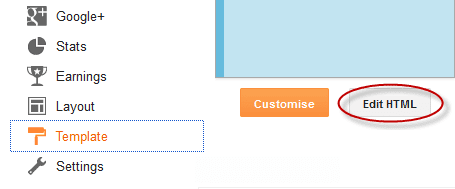
  • Then click one the Edit HTML to open the HTML Editor.
  • Now click inside the HTML Editor and Press CTRL+F to Search for htt://
  • Then Replace all http:// to https://
  • Verify all the URL after adding https:// to it by opening it in a new browser window. If the HTTP and HTTPS link give the same result, then everything is OK.
Mixed Content Errors Blogger Template

  • Finally click on Save Template button.

Fixing Mixed Content Errors in Layout:
  • From your Blog Dashboard click Layout and click Edit on All HTML/JavaScript
  • Find and Replace htt:// with https:// and save them.


Avoid Mixed Content Errors in Post/Page Editor:

To find and fix the mixed content errors automatically, blogger introduced a warning tool to alert about the possible mixed content inside the post. Let's see how to use this tool.
  • Open the Post/Page Editor by clicking Edit link.
  • Then click on HTML tab
  • Now click on the Publish/Update or Save button 
If the content has any errors, you’ll see them at the top of the editor along with the link to Fix or Dismiss them. 
  • Fix: This will fix the errors identified by the editor and save the post.
  • Dismiss: Dismiss will ignore the errors for this session.
  • Click on the Dismiss link to Fix the Errors and Update/Publish it .

Blogger Mixed Content Errors Fix


That's it, hope it will help you to fix the Mixed Content Errors of your Blog. However fixing this errors will help you to improve the performance of your blog, particularly when it come to pages which may have issue with mixed content generating errors.


Please Share This Post 
Stay with techie-asif.blogspot.com for more IT related post

Thursday, June 16, 2016

How to Enable HTTPS on ALL Blogspot Domain !!!

Recently when I had logged into my Blogger account I got a notification about the Turning on the HTTPS supports for the Blogger's all blogspot domain. I think most of you have also noticed that notification like me. Like most of you there are several question that had come across in my mind after seeing that notification, such as...
  • What is HTTPS ?
  • What are the benefits of enabling HTTPS ?

In this post I'm gonna try to share some information that will give us the answer of these question and also gonna show the procedure to enable HTTPS support.


HTTPS Notification:

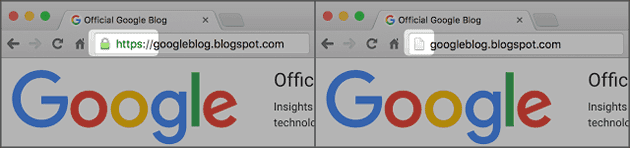
Before start for searching for answer, first see actually what was in that HTTPS notification. In that notification Blogger.com notified the Blog admin that the visitors would be able to view their domain through encrypted connection, while having all the links and bookmarks working. But the HTTPS availability supports will be disappeared. Have a look at the Notification image below...

HTTPS Blogspot


Currently this HTTPS support is only available for the Blogspot domain. And custom domain user like me will have to wait for a while to have HTTPS support. Because till this post is published the HTTPS supports is not available for the Custom Domian users on Blogger platform.


What is HTTPS:

Hyper Text Transfer Protocol Secure (HTTPS) is the a secure version of HTTP. That means the data that transferred between the user and server is now encrypted and protected from access or hacking from unwanted third parties.


Benefits of Enabling HTTPS: There are three main benefits to using HTTPS instead of HTTP to access your blog:

  • It helps check that your visitors open the correct website and aren’t being redirected to a malicious site.
  • It helps detect if an attacker tries to change any data sent from Blogger to the visitor.
  • It adds security measures that make it harder for other people to listen to your visitors’ conversations, track their activities, or steal their information.
  • And most interesting thing is, you are getting this HTTPS support without any cost, it is completely FREE!!

HTTPS is fundamental to internet security; it protects the integrity and confidentiality of data sent between websites and visitors' browsers. HTTPS enabled blog will get free SSL certificate which means that the site that you are visiting is secured. Beside that it will leave positive impact on search engine optimization (SEO). Google always gives higher importance on HTTPS than HTTP. So it ensure the higher ratting for your site.

HTTPS Blogspot


Warning: Please be aware that mixed content may cause some of your blog's functionality not to work in the HTTPS version. Mixed content is often caused by incompatible templates, gadgets, or post content. While Blogger proactively fixing most of these errors, some of them can only be fixed by the blog authors.


How to Enable HTTPS on Blogger:
  • First Login to Your Blogger Account.
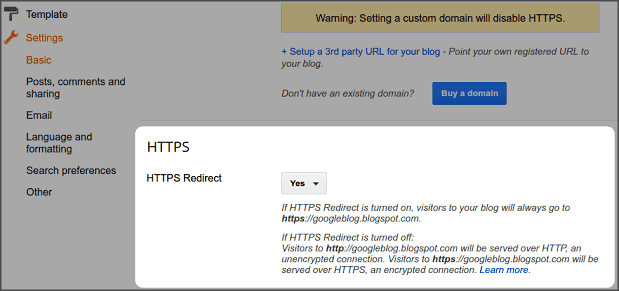
  • Then go to Settings > Basics > HTTPS Redirects 
  • Now from the HTTPS Redirects Dropdown, select Yes
  • Finally Save the settings.

HTTPS Blogspot


Later if you disable HTTPS redirect, visitors have two options for viewing your blog:
  • View the unencrypted version of your blog at http://techie-asif.blogspot.com
  • View the encrypted version of your blog at https://techie-asif.blogspot.com

Please Share This Post 
Stay with techie-asif.blogspot.com for more IT related post

Tuesday, May 5, 2015

Make Your Site Mobile-Friendly to Get Higher Rank!

Making Website Mobile Friendly
Very Recently Google has applied a new rules for website in their ranking system. From April 21, 2015 Google Search had started to consider mobile-friendliness of a site as a ranking signal. That means now the sites which is mobile friendly will get higher rank. As result of this new rule the following important changes is brought in the Google Search Result...

  • This change will affect mobile searches in all languages worldwide and will have a significant impact in Google Search results.
  • Users will find it easier to get relevant, high quality search results optimized for their devices.

I a have got to know about this new rule of Google Search Result a few days ago when I was signed in to my AdSense Account. I have got  a notification there saying - Your site's mobile-friendliness is now considered as a Google Search ranking signal. I have tested my site already and www.iTTimesbd.com have passed the Mobile-Friendliness test successfully - Result is below:

Testing Website Mobile Friendliness


Is your site Mobile-Friendly ? If you don't know then check it quickly. Google has an excellent Mobile-Friendly Test tool to check a site's mobile friendliness. This tool shows how Google Search sees your pages. Follow the steps below to check your site's Mobile-Friendliness...

  • Then Enter your site's URL in the box and click Analyze button

That's it within a few seconds you will get your site's Mobile-Friendliness test result. If the result is positive then nothing to worry about. But if the result is negative, then take sufficient steps as quick as possible to make your site Mobile Friendly.


Making a Site Mobile Friendly:

There is nothing that can be said to make a site mobile friendly. It is basically depends on the content management systems (CMS) that you are used to manage your websites or blogs. Webmasters use different website software packages like WordPress, Blogger, Joomla!, Drupal, Tumblr, Google Sites etc. to manage their sites.


As I'm not expert of these website software packages (CMS), that is why I can't suggest you any solution regarding these. And as a Blogger blogging on Blogger.com platform I can only provide solution for Blogger.com platform. But don't worry Google Developer guides on making sites mobile friendly will provide you complete solution. All you need just to select your website software package.


Useful Link to Make Mobile-Friendly Site:


Guide for Blogger.com Platform:

Sites/Blogs created on Blogger.com Platform, making them Mobile-Friendly is much easier. Because here Mobile Templates are privileged with Mobile-Friendliness by default. And there are some Mobile-Friendly templates available here. All you need just to Enable and choose your Mobile Template...

  • Sign Into your Blogger Account and go to Dashboard.
  • Then click on Template option.
  • Then click the Gear icon under Mobile.
  • Now select Yes. Show mobile template on mobile devices.

Mobile Friendly Templates of Blogger 

Choose Mobile Template: Here you can choose templates of you own choice from the different types of templates available here. All of them are Mobile-Friendly. You can also choose Custom, then your desktop template will be adapted for mobile devices. But I will recommend you to avoid the Custom option, because it may not work fine of mobile device.

  • Finally click on Save button to apply the template.

That's it, your site/blog is Mobile-Friendly now. But before come to any conclusion you must take a test of your site's / blog's Mobile-Friendliness Test.


Please Share This Post or At Least press g+1 on Every Post
Stay with www.iTTimesbd.com for more IT related post

Monday, February 2, 2015

Show Blogger Post in Gird View with Thumbnail!

Recently I had shared a post on Adding Read More button with Thumbnails. And to day I am gonna show how you can Display your Blogger Blog post in Gird View Style with Thumbnail. Actually both of these Post displaying technique on Blog homepage are almost same. But the the design and the code that you will have to use for this Gird view style is different. When you apply the Gird View style in your blog the posts of your Blog will shown like the below example. Have a look at the Demo below.

Gird View Style with Thumbnail

If you are blogging on Blogger platform then you can apply this design on your Blog. As the result of the application of this Gird View style on your blog all the posts will be display as a thumbnail gird of image in homepage and archive pages. In the normal view style you can only afford to display a few posts on homepage. But in Gird view style you can display many post in a gallery with thumbnail and post title. If your blogging on Wallpaper or Photo then this style can give the maximum result. Let's see how to add this Gird view style on Blogger.


Warning: Before doing any kind of customization on your site's HTML page, I will recommend you to backup your site Template. To know more about Template backup Read This Post.

Adding Gird View Style to Blogger:
  • First Sign into your Blogger Account and go to Dashboard.
  • Then click on Template and then click on Edit HTML button. You will land on the HTML page.
edit blogger template
  • Here in the HTML page find </head> tag and Paste the following code just Above it.
 <script src="http://code.jquery.com/jquery-1.9.1.js"></script>  
 <script src="http://code.jquery.com/jquery-migrate-1.1.0.js"></script>  
 <b:if cond='data:blog.pageType == &quot;index&quot;'>  
 <script type='text/javascript'>//<![CDATA[  
 $(document).ready(function() {  
   var width = 200;  
   var height = 170;  
   var placeholder = 'https://blogger.googleusercontent.com/img/b/R29vZ2xl/AVvXsEiLtYbtwt3ER4nyweaoCEQO8yCaO02IZeH__KQeR5c9nAVH5LGodMLObauF2TZ_QFGGdfdtHXIb5z2e67nUCB_M5n8ArcTGx_Szhkj0kV4ogdqw2S3VzTIdbo5eoIYtCfeyu_-jsN-6hwY/s1600/no-thumb.png';  
   var margins = "0px 0px 10px 10px";  
   var fitThumb = 1;  
   var titleTopPadding = 5;  
   var titleBottomPadding = 8;  
   var titleLeftRightPadding = 5;  
   var titlePadding = titleTopPadding + 'px ' + titleLeftRightPadding + 'px ' + titleBottomPadding + 'px ' + titleLeftRightPadding + 'px';  
   $('.post-body').each(function(n, wrapper) {  
     var wrapper = $(wrapper);  
     var image = $(wrapper).find('img').first();  
     var link = wrapper.parent().find('h3 a');  
     var linkURL = link.attr('href');  
     var linkTitle = link.text();  
     $(link).remove();  
     wrapper.empty();  
     if (image.attr('src')) {  
       var thumbHeight = image.attr('height');  
       var thumbWidth = image.attr('width');  
       var thumbParent = $(image).parent();  
       wrapper.append(thumbParent);  
       if (fitThumb) {  
         image.attr({  
           src: image.attr('src').replace(/s\B\d{3,4}/, 's' + width + '-c')  
           });  
         image.attr('width', width).attr('height', height);  
       } else {  
         image.attr({  
           src: image.attr('src').replace(/s\B\d{3,4}/, 's' + width)  
           });  
         image.attr('width', width);  
         var changeHeight = (thumbHeight / thumbWidth * width).toFixed(0);  
         image.attr('height', changeHeight);  
       }  
     } else {  
       var image = $('<img>').attr('src', placeholder).attr('height', height).attr('width', width);  
       var thumbParent = $('<a>').append(image).appendTo(wrapper);  
     }  
     thumbParent.attr('href', linkURL).css('clear', 'none').css('margin-left', '0').css('margin-right', '0').addClass('postThumbnail');  
     var thumbTitle = $('<div>').prepend(linkTitle).css('padding', titlePadding).css('opacity', '0.9').css('filter', 'alpha(opacity=0.9)').css('width', width).appendTo(thumbParent);  
     var ptitleHeight = thumbTitle.height();  
     var summary = parseInt(ptitleHeight) + parseInt(titleTopPadding) + parseInt(titleBottomPadding);  
     thumbTitle.css('margin-top', '-' + summary + 'px');  
     wrapper.css('float', 'left').css('height', height).css('width', width).css('margin', margins).css('overflow', 'hidden');  
   });  
   $('#blog-pager').css('clear', 'both');  
 });  
 function hideLightbox() {  
   var images = document.getElementsByTagName('img');  
   for (var i = 0; i < images.length;++i) {  
     images[i].onmouseover = function() {  
       var html = this.parentNode.innerHTML;  
       this.parentNode.innerHTML = html;  
       this.onmouseover = null;  
     };  
   }  
 }  
 if (window.addEventListener) {  
   window.addEventListener('load', hideLightbox, undefined);  
 } else {  
   window.attachEvent('onload', hideLightbox);  
 }  
 //]]>  
 </script>  
 <style>  
 .post {  
   border-bottom: 0 dotted #E6E6E6;  
   margin-bottom: 0;  
   padding-bottom: 0;  
 }  
 h2,.post-footer {  
   display: none;  
 }  
 a.postThumbnail div {  
   text-decoration: none;  
   color: #fff;  
   font-size: 12px;  
   font-weight: bold;  
   text-transform: capitalize;  
   background: rgb(125,126,125);  
  /* Old browsers */  
   background: -moz-linear-gradient(top, rgba(125,126,125,1) 0%, rgba(14,14,14,1) 100%);  
   background: -webkit-gradient(linear, left top, left bottom, color-stop(0%,rgba(125,126,125,1)), color-stop(100%,rgba(14,14,14,1)));  
  /* Chrome,Safari4+ */  
   background: -webkit-linear-gradient(top, rgba(125,126,125,1) 0%,rgba(14,14,14,1) 100%);  
   background: -o-linear-gradient(top, rgba(125,126,125,1) 0%,rgba(14,14,14,1) 100%);  
   background: -ms-linear-gradient(top, rgba(125,126,125,1) 0%,rgba(14,14,14,1) 100%);  
   background: linear-gradient(to bottom, rgba(125,126,125,1) 0%,rgba(14,14,14,1) 100%);  
   filter: progid:DXImageTransform.Microsoft.gradient( startColorstr=&#39;  
   #7d7e7d&#39;, endColorstr=&#39;#0e0e0e&#39;,GradientType=0 );  
 }  
 a.postThumbnail:hover div {  
   display: block;  
 }  
 .post-body img {  
   background-color: transparent;  
   border: 1px solid transparent;  
   padding: 0px;  
   -webkit-border-radius: 12px;  
   -moz-border-radius: 12px;  
   border-radius: 12px;  
   opacity: 1;  
   transition: opacity .25s ease-in-out;  
   -moz-transition: opacity .25s ease-in-out;  
   -webkit-transition: opacity .25s ease-in-out;  
 }  
 .post-body img:hover {  
   -ms-filter: &quot;  
   progid: DXImageTransform.Microsoft.Alpha(Opacity=70)&quot;  
   ;  
 filter: alpha(opacity=70);  
   -moz-opacity: 0.7;  
   -khtml-opacity: 0.7;  
   opacity: 0.7;  
 }  
 </style>  
 </b:if>  

Customization:
  • To modify the Thumbnail size, change width = 200 and height = 170 value.
  •  Replace the image URL in Red with your own, to change the default thumbnail when there are no image.

  • Finally click on Save Template button to apply the Gird view style.

That's it, Now view your blog and you will see that your blog's posts are showing in nice Gird View style.


Stay with www.iTTimesbd.com for more IT related post

Sunday, February 1, 2015

Making a Gadget Visible only to the Blog Admin!

Blogger Tips and Tricks
There are several post I had shared related to Blogger tips and tricks earlier in this site. And today I'm gonna share another important post on Blogger. You may have already get the idea about this post content from the title of this post. Actually this post is very much exclusive as because the trick that I am share in this post is mostly used by the Professional and high profile website. So, lets know something more about Making a Gadget Visible only to the Blog Administrator.

A Website or Blog Admin use several gadgets on his site. But sometime you may want to make any one of your site's gadgets only visible to you and not to your visitor. Basically when the admin set any kinds of Survey or Countdown gadgets on his site he don't want anyone else to see that gadgets until the final result is ready. As the best example of this trick I can take the name of Online Voting gadgets used Online News site.


Actually the procedure of hiding a gadget on Blogger is very simple. You just have to add two lines to the gadget that you want to hide. And you will have to add the code inside your Blogger Template. OK lets see how to do the trick.

Warning: Before doing any kind of customization on your site's HTML page, I will recommend you to backup your site Template. To know more about Template backup Read This Post. 

  • First Sign into your Blogger Account and go to Dashboard.
  • Then click on Template and then click on Edit HTML button. You will land on the HTML page.
  • Here in this HTML page Search for the Gadget code that you want to hide.
Example: A HTML/JavaScript code will be like the following one.
 <b:widget id='HTML1' locked='false' title='' type='HTML'>  
 <b:includable id='main'>  
 <span class='item-control blog-admin'>  
 <!-- only display title if it's non-empty -->  
 <b:if cond='data:title != &quot;&quot;'>  
 <h2 class='title'><data:title/></h2>  
 </b:if>  
 <div class='widget-content'>  
 <data:content/>  
 </div>  
 <b:include name='quickedit'/>  
 </span>  
 </b:includable>  
 </b:widget> 

Note: So, all you have to add the Red line the gadget as shown in the above. Now all the gadget have the same structure like the above example, but it will be easier to guide you, just place the first code in Red just after <b:includable id='main'> and second Red code just before </b:includable>. To look look inside the widget's code, click on the sideways arrow next to the widget's id. 

  • Finally click on Save Template button to apply the change.


As the application of this change when you view your Blog without signing in that gadget will not be visible to you, but as soon as you sign in you will see that it is visible to you.


Stay with www.iTTimesbd.com for more IT related post

Thursday, October 16, 2014

How to Add Bubble Comment Count in Post Titles

If your are blogging on blogger platform then you already know that by default number of comments are displayed at the bottom of the post. As a result these are not easily noticeable to the visitors. As we all know that the numbers of comments is one of the parameter by which you can get idea of a post popularity. But as the comment count in blogger display at the bottom of the post, the visitors only see the comment count when they reach at the end of the post. So, the better idea is showing the comment count at top of the post.


If you show the comment counter in your posts title then it will be easily noticeable to the visitors. And also inspire to comment on the posts. In this post I am gonna show a trick by which you can add comment counter in the post titles. As a result the comment count will be displayed with post titles. If the visitors click on the comment counter then they will be jump to comment section. Let's do the trick...


Adding Comment Counter in Post Title:
  • First Sign into your Blogger Account and go to Dashboard.
  • Then click on Template and then click on Edit HTML button. You will land on the HTML page.
  • Here in the HTML page find class='post-title entry-title' line (You will find this line for two times) and Paste the following code just Below the both lines.

  • <b:if cond='data:post.allowComments'>
    <a class='comment-count' expr:href='data:post.addCommentUrl' expr:onclick='data:post.addCommentOnclick'><data:post.numComments/></a>
    </b:if>

  • Now again find ]]></b:skin> and Paste the following code just Above it.

  • .comment-count {
    float : right;
    width : 48px;
    height : 48px;
    background : url(  IMAGE URL  );
    background-repeat: no-repeat;
    font-size : 18px;
    position:absolute;
    margin-top : -15px;
    margin-right : 2px;
    text-align : center;
    } 

    Customization:
    • Click right mouse button on anyone of the below image that you want to as the comment counter background and click Copy Image URL.
    • Then in the above code Replace IMAGE URL with your Image URL.

      Bubble Comment Counter
      Bubble Comment Count
      Bubble Comment Count in blogger
      Bubble Comment Count
      Comment Count
      Comment Count
      Add Bubble Comment Count
      Bubble Comment Count
      Bubble Comment Count
      bubble comment blogger
      bubble comment blogger
      Comment Counter
      bubble comment blogger
      Comment Counter
      blogger tips, blogger tricks
      blogger widgets, bubble comment count
      Comment Counter
      blogger comments, comment count
      Comment Counter
      Comment Counter

  • Finally click on Save Template button to apply it.


That's it. Now view your blog and you will see that comment counter showing with the posts title.


Stay with www.iTTimesbd.com for more IT related post

Wednesday, June 4, 2014

Customize Blog Design by Blogger Template Designer

Hello blogger, If you are blogging on blogger.com platfor then you should be familler with the Blogger Template Besigner option. Blogger Template Designer is a built in option of blogger.com by which a blogger can easily customize their blog template. In this post I am going to discuss about customizing a blogger blog by Blogger Template Designer.


Customizing Blog Design


About Blogger Template Designer:

This is an excellent blogger option that let you to customize everything regarding your blog design. This is very easy to use. Only if you use blogger default templates then you can customize your blog design by Blogger Template Designer. Advantages of Blogger Template Designer are as follows.
  • You don't have to have any coding knowledge.
  • Very easy and User friendly interface.
  • You can easily get back to the earlier design.

Options Available In Template Designer:
  • Templates: Using this option you can change your blog template from available templates.
  • Background: Using this option you can change your blog template's background and it's color.
  • Adjust Widths: Using this option you can change the width of your entire blog and sidebar.
  • Layout: Using this option you can rearrange the layout of your blog.
  • Advance: Using this option you can customize a lot of thing like Font size, style, color, Gadgets, Tabs, Post Footer etc.

Customizing Your Blog Design: 
First you will have to sign in to your blogger account. Then follow the below path to get into the Blogger Template Designer location.

Blogger Dashboard>>> Template>>> Customize. Then you will be land on the following interface.

Customize Blogger Blog Design

I think if you have a minimum blogging experience then you can easily customize your blog design. But I want to write something about it.

  • Templates: There are Seven different types of templates available in this templates section. These are Simple, Dynamic views, Picture Windows, Awesome Inc. Watermark, Ethereal, Travel. You should a template which mostly fit with you blog category.
  • Background: Every blogger templates has a main and background theme. Here in this option you can customize the background theme and color. There are a lot of Background image available here. Use the background image which is related to your blog category.
  • Adjust Widths: Here you can customize the widths of your entire blog and its sidebar. Don't make your blog too wide that exceed 1024×768 resolution screen. I think the the entire blog should to within 1000px to 1100px and the sidebar should be 300px to 325px.
  • Layout: Here in this section you can customize the Body and Footer layout of your blog. There are eight types of body layout and three types of footer layout available. You can determine how many sidebar and where they will be placed and how many footer you will use in your blog. I prefer one sidebar at the right side and two footer.
  • Advance: This is the most important and critical section of the template designer. Using this option you can customize almost everything which will be displayed on your blog body. The most important thing you can customize here Page text and color, Blog title and description, Tab Text, Link color, Post Footer, Gadgets etc.

Tips: Before start editing you must let the preview load completely. Otherwise you will not be able to see the preview of the changes that you are making. After customizing anything you will have to click Apply to Blog button to apply the changes on your blog.

I hope now will be able to customize your blog design by yourself. Still you need to know any thing regarding this topic then don't forget to leave your valuable comment.


Stay with www.iTTimesbd.com for more IT related Post 

Wednesday, January 1, 2014

TechPlus - Highly Responsive Free Blogger Template!

This is for the first I'm sharing Templates for Blogger in this site. As you all know the importance of having proper templates according to the site contents. So, to make your effort much easier from today I will try to collect and share free Blogger templates with you. If your are blogging on Blogger platform and if your site is Technology or IT related then the template that I'm sharing can be proper choice for your site. The name of the Template is TechPlus. Let's have a look at the below image to get an idea about the design of this template.

blogger  template


Download | Live Demo

Features:
  • Three (3) column.
  • Two (2) Sidebar: Right and Left.
  • Ads Ready - At the right side of the site header.
  • Slideshow.
  • Social Bookmarking icon at the top.
  • Simple and cute custom search box.
  • Excellent layout design.
  • Compatible with: Chrome, Firefox, Internet Explorer and many more.
  • And above all very fast loading and SEO friendly. 


Installation Instruction: The template is stored in a zipped folder including Slider code. So, all you need to do is Download and Unzip the folder and upload the XML file to your blog. If you don't know how to install a Blogger template then read the post below....


How to Customize the Menu: Most templates have a menu that can only be edited from the HTML page of the blog (Dashboard → Design → Edit HTML or Dashboard → Template → Edit HTML). So, go to your blog HTML page then find the menu with their name and link and replace them with your name and URL.


Stay with www.iTTimesbd.com for more IT related post

Monday, December 30, 2013

How to Upload Template to Blogger (Exclusive!)

A website or blog template is a pre-designed webpage that is generally created web designing code like HTML and CSS. But that's not discussion point of this post, in this post I'm gonna discuss about how to upload and install template. If you are blogging on Blogger platform then you might know that it supports XML template. Though there are enough templates available in Blogger.com, but still if you want then you use custom template in your blog created by you or downloaded from the web.


Choosing a Blogger Template:

There are several website available on internet who are providing free templates for Blogger users. Among them btemplates.com is the most popular to the Blogger, as because this site has a huge collection of free Blogger templates. All the templates shared in this site are stored Zipped folder. So, all you need is Download and Unzip the Template folder and you will get XML file to upload to your blog. After collecting the Template, follow the below steps to upload or install it to your Blogger blog.

Warning: Before doing any kind of customization on your site's HTML page, I will recommend you to backup your site Template. To know more about Template backup Read This Post.

How to Install Blogger Template:
  • First Sign into your Blogger Account and go to Dashboard.
  • Then click on the Template option.
  • Now here click Backup / Restore button located at the right top.
  • Then a Template > Backup/Restore window will open.
  • Now here in this window click on the Browse button and choose the XML file of the template.
  • And finally click on Upload button.
blogger templates


Now wait for a few second and when the template is uploaded, view your blog to check it.


Alternative Way to Upload Blogger Template:

Sometimes it may happens that you can't upload Template to your blog. In such case you can try the following way to setup the template.

  • First Right click on the Template XML file and open it on Notepad.
  • Then Copy the full template code from the Notepad.
  • Now go to your Blogger account.
  • Then click on Template option and click Edit HTML button.
edit blogger template
  • Now here in the HTML page click anywhere and press Ctrl+A to select the full code.
  • Then Press Ctrl+V to paste the XML template code (copied from notepad) over the current code.
  • Finally click on the Save Template button.

That's it, this time also wait a few seconds to let the template to be saved. After that view your blog to check.


Stay with www.iTTimebd.com for more IT related Post

Saturday, September 14, 2013

How to Adjust Blogger Width by Template Designer!

How To Change Blogger Blog Width
Blogger or Website owner always want to modify and decorate their site. Basically the modification is needed to get the perfect look of a site. And adjusting blog or website width is one of the way to decorate your site. Suppose, you need to increase or decrease your blog width to fit your post and images with your blog homepage. In such case you have to adjust your blog width. In this post I am gonna show how to adjust blogger width.


If you are blogging on Blogger Platform then you can easily adjust your blog width very easily. By default Blogger has a Template designer by witch you can adjust your Enter blog width and sidebar width. Let's see hot to do it...


How to Change Blogger Blog Width:
  • First Sign into your Blogger Account and go to Dashboard.
  • Then click on Template option and click Customize button. Wait a bit to load the interface completely.
  • Then click on Adjust Width option from right panel.
    • Then you will get two options to adjust your Blog. One is for Entire Blog and the other one is for the Sidebar. If your blog has two sidebar then you will get adjusting option for both Sidebar.
Template Designe
  • Now move these option bar to adjust you Entire Blog and Blog's Sidebar width.

Extra Tips: Don't make your blog too wide that exceed 1024×768 resolution screen. I think the the entire blog should to within 1000px to 1100px and the sidebar should be 300px to 325px.


Stay with www.iTTimesbd.com for more IT related Post

Friday, September 13, 2013

How to Remove Blank Space Above Blog Header!

We all use blog to share our views and information and many other things. And Blogger is one of the most popular blogging platform. We want to design or decorate our blogger template as we want. But in default Blogger template you need to fix several thing to get a decent look. One of the most common issue is with blank space above the Blog Header. In the earlier post In had shown How To Off Navbar Of BogSpot.

After turning of the Navbar in your blog , if you have close look at the above of your blog you will see that there is an unnecessary space in place of navigation bar. In todays post I am gonna show how to remove blank space above blog header. Before that make sure that you have already off the navigation bar from your blog. To know more...How to Hide Blogger Navbar Manually

Demo:
Blank Space Above Blog Header


Without Blank Space Above Blog Header


Warning: Before doing any kind of customization on your site's HTML page, I will recommend you to backup your site Template. To know more about Template backup Read This Post.


Removing blank space above Blogger Header:
  • First Sign into your Blogger account and go to Dashboard.
  • Then click on Template option.
  • Then click on Edit HTML button. You will land on your Blog HTML page
    edit blogger template
  • Then here Find </head> tag and Paste the following code just Above it.
     <style type='text/css'>  
     .content-inner   
     {   
     margin-top: -40px !important;   
     }  
     </style>  
  • Finally click on Save Template button to apply the change.


Stay with www.iTTimesbd.com for more IT related Post