Showing posts with label Tips and Tricks. Show all posts

Monday, August 9, 2021

How to Take a Screenshot on Android [Any PHONE]

How to Take a Screenshot on Android

May be you are laughing with the title of this post. If you are laughing then its normal as taking screenshot is one of the most common and easy activity done the smartphone and people having very little knowledge can easily take screenshot. 


But currently there are many smartphone manufacturer available in the mobile phone market and almost every single day these phone company's are launching different models with different features. As every android phone is different and taking screenshot with them is also different.

Although 4th version of Android, Ice Cream Sandwich had introduced simple screenshots for all android device with simple Power-and-Volume-Down-Key but with different manufacturer Smartphone's now having different new methods of taking screenshots. Here in this post I am gonna try to cover almost all the methods of taking screenshot. Lets check it below...

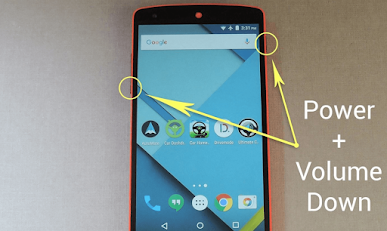
With Power & Volume Buttons:

This method of taking screenshot works on almost all the android smartphone brand and model available in the market.
  
  • Hold down the power and volume-down buttons at the same time for a couple of seconds.
    How to Take a Screenshot on Android

  • Pull down the notification panel to reach quick settings and tap the Screenshot icon or Go to your Phone's Gallery and here you will get your taken Screenshot.


With Home & Power/Volume Buttons:

In this screenshot taking method works with the phone having physical home buttons. You will have to use Home buttons along with the Power or Volume buttons.

  • HTC U12+: Press and hold the power button until your phone vibrates, and then tap the virtual home button on the navigation bar while still pressing the power button
  • HTC 10: Hold down the home and power buttons for a couple of seconds.
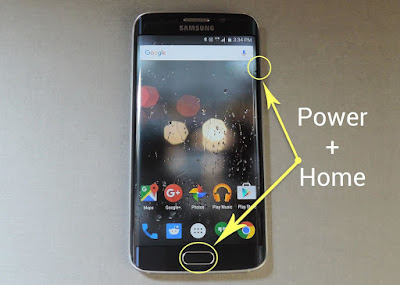
  • Galaxy S7 and earlier: Hold down the home and power buttons for a couple of seconds.

    How to Take a Screenshot on Android

  • Pull down the notification panel to reach quick settings and tap the Screenshot icon or Go to your Phone's Gallery and here you will get your taken Screenshot.

With Gesture on the Screen:

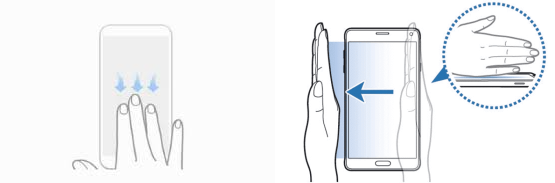
Taking screenshot on android phone using different on screen gesture is one of the latest and the easiest technique. You can also customize the gesture of taking screenshot. The most used and common screenshot are....

  • Three Finger Swipe: Swipe down with three fingers on the home screen.
  •  Palm Swipe: Over the Phone Screen Swipe your Palm from Right to Left or Left to Right direction. 

    How to Take a Screenshot on Android


  • Pull down the notification panel to reach quick settings and tap the Screenshot icon or Go to your Phone's Gallery and here you will get your taken Screenshot.
 
With Google Assistant:

If you want to take screenshot on your phone with your voice command than Google Assistant is there for you. If your Phone supported Google Assistant than one the desired screen just ask the Google Assistant to take screenshot. That's it now save your taken screenshot. 
how to take a screenshot on android how to screenshot on android how do i take a screenshot on my phone how do i screenshot on this phone how do you screenshot on a Samsung how to take screenshot on Samsung s20 how to take a screenshot on my phone how do i take a screenshot
 on this phone how do i screenshot on my phone how to do a screenshot on android how to take a screenshot on this phone how to screenshot on lg phone how to take a screenshot on a Samsung phone how to take a screenshot on Samsung galaxy how to screenshot on android phone how do you take a screenshot on a Samsung how to screenshot on Samsung phone how do i screenshot on Samsung how to make screenshot on android how do you screenshot on this phone how to take a screenshot on Samsung s10 how to take screenshot in Samsung j2 how to screenshot on android tablet how to screenshot on Samsung galaxy how to take a screenshot on android phone how do i do a screenshot on my phone how do you screenshot on an android how do you take a screenshot on an android phone how do i take a screenshot on my android phone how do i take a screenshot on my Samsung how to take a screenshot on lg phone

Stay with TecHie-ASiF for more IT related post
Tuesday, August 3, 2021

How to Find a Lost Android Phone with Google

How to Find a Lost Android Phone

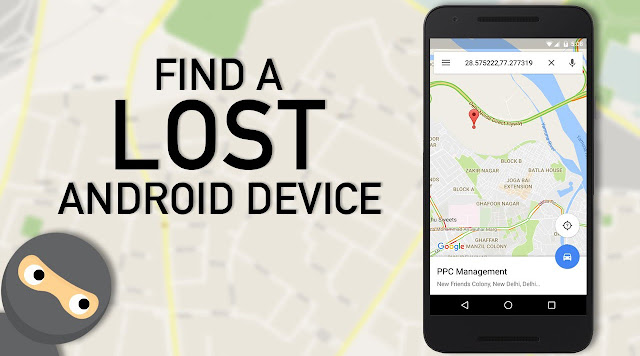
In the current digital world mobile is the most used gadget in the daily life. But it become the matter of personal insecurity and the breach of privacy, when you lost or your phone is stolen. As your phone contains your personal information and data and you don’t want it falling into the wrong hands. It is not easy to track or find your lost or stolen smartphone, but if your phone is an android device than, with Google your can find your lost or stolen android smartphone. 

Google has an app and website that called Google Find My Device, though this google service you can find your lost/stolen android device, secure it, and erase all data. The most common situation happens to the smartphone users is, we sometimes forget our phone where we left, in such case if the phone is muted then it become difficult to find it out. This this post you will also learn to find your muted/silent phone with Google Find My Device.

To Find Your Lost/Stolen Android Phone, That Phone Must: 

  • Be turned ON 
  • Be signed in to a Google Account 
  • Be connected to mobile data or Wi-Fi 
  • Be visible on Google Play 
  • Have Location turned ON
  • Have Find My Device turned ON

Now Lets Find the Lost/Stolen Android Phone: 
  1. Go to Android.com/find and sign in to your Google Account, which you are using with your lost or stolen smartphone. 

    #Google’s Find My Device service is available as an Android app and as a standalone web page; both work the same way. 

  2. If you’re already signed into your Google account, you should see a map with your registered devices automatically displayed.
  3. On the Map your see the GPS location of your lost/stolen phone.

Google's Find My Device


Now If you have forgot phone where you have kept it and the phone is in silent mode, then...
  • Click on Play Sound  and it will Rings your phone at full volume for 5 minutes, even if it's set to silent or vibrate.

Try to follow the sound to see if it leads you to your device. When done, tap the Stop Sound button.
find android phone find my android google find my device find my phone google find my phone android find my device android lost android track my phone for free online find my phone huawei how to find a lost phone google find phone find my mobile google google locate my phone find my phone google account google dashboard find my device google imei tracker google phone locator track my phone google phone tracker google locate android phone where's my phone google find my phone with gmail
Stay with TecHie-ASiF for more IT related post

Monday, August 2, 2021

Google Go: A Lighter, Faster Way to Search on Android Phone

Download Google Go

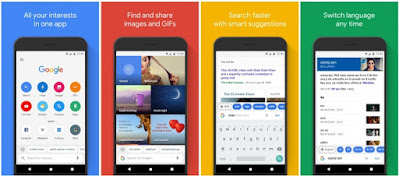
Google Go is a lighter, faster way to search, with search results optimized to save up to 40% data.


Get answers quickly and reliably with Google Go, even on slow connections and smartphones with low space. At 12MB in size, it’s fast to download and saves space on your phone.

Download Google Go


Type less, discover more. Save time by tapping your way through trending queries and topics, or by using your voice to say what you’re looking for.

Make Google read it. Point your camera at text or listen to any web page. Words are highlighted as they are read, so you can easily follow along.

Search and translate with your camera. See a word you don’t understand on a sign, form, or product? With Google Lens, just point your camera to translate or search for it.

Everything you need in one app. Easily and quickly access your favorite apps and websites, as well as images, videos and information on the things you care about - all from Google Go.

Don’t miss out on what’s popular and trending. Explore the latest trending topics just by tapping Search.

Find the perfect greetings to share with loved ones. Tap on “Images” or “GIFs” to find the best photos and animated greetings to liven up your chats.

Easily switch between languages. Set a second language to switch your search results to or from at any time.

Whatever you are looking for on the internet, Google Go makes it fast and easy for you to find!

Play Store Link: Google Go


Stay with TecHie-ASiF for more IT related post 

Sunday, July 25, 2021

Surokkha App - COVID19 Vaccine Application for Bangladeshis

 Surokkha app


In order to distribute COVID-19 vaccine among the people of Bangladesh, ICT Division of Bangladesh has come up with a web portal and mobile application to proceed with initial registration process. Surokkha is providing the facility to register for vaccination for the people of Bangladesh.

If anyone wants to register for COVID-19 vaccine, they must provide the National Identification number to verify. The following information are being captured from this application.
- National Identification Number
- Date of Birth
- Mobile Phone number
- Co-Morbidity
- Desired Address for Vaccination Center
- User consent for receiving vaccine

The application verifies the user by sending an OTP to the given mobile phone number and allow them to register. Registrants can check their application status, download Vaccine Card and download Certificate in a later stage.


Play Store Link: SUROKKHA APP


Stay with TecHie-ASiF for more IT related post
Most Essential CMD Commands of Windows PC

Windows CMD Commands


The Command Prompt is your gateway to advanced Windows tools. Here are all the essential CMD commands in a cheat sheet. The Windows Command Prompt may seem daunting, with its simple interface that lacks the usual Windows help tips, but it's actually one of the most powerful instruments in the Windows arsenal.

The Command Prompt on Windows 10 is useful for everything from complex automation to network configuration. What it lacks in interface it more than makes up for in effectiveness. If you don't know where to start with command prompt proficiency, what better place than to start here!

While most seek the best and most useful commands immediately, it helps to gloss over what different parameters mean. Proficiency with your Command Prompt comes not only through having a lexicon of commands, but of understanding what each parameter means and how different parameters can be combined to achieve a desired effect as well. 

The following is a comprehensive list of the most essential Windows commands.

Essential Windows Command Prompt Commands

COMMANDRESULT
ASSOCDisplays or modifies file extension associations.
ATTRIBDisplays or changes file attributes.
BREAKSets or clears extended CTRL+C checking.
BCDBOOTUsed to copy critical files to the system partition and to create a new system BCD store.
BCDEDITSets properties in boot database to control boot loading.
CACLSShows or changes access control lists (ACLs) of files.
CALLCalls a batch program from another.
CDShows the name of or changes to a current directory.
CHCPDisplays or sets the active code page number.
CHDIRDisplays the name of or changes to the current directory.
CHKDSKChecks a disk and displays a status report.
CHKNTFSDisplays or modifies the checking of disk at boot time.
CHOICEBatch file command that allows users to select from a set of options.
CIPHERDisplays or alters the encryption of directories (files) on NTFS partitions.
CLIPRedirects output off another command to the Windows clipboard.
CLSClears the screen.
CMDStarts a new instance of the Windows command interpreter.
CMDKEYCreates, lists, and deletes stored usernames and passwords or credentials.
COLORSets the default console colors.
COMPCompares the contents of two files or sets of files byte by byte
COMPACTDisplays or alters the compression of files on NTSF partitions.
CONVERTConverts FAT volumes to NTFS. You cannot convert the current drive.
COPYCopies one of more files to another location.
DATEDisplays or sets the date.
DEFRAGDisk defragment accessory.
DELDeletes one or more files.
DIRDisplays a list of files and sub-directories in a directory.
DISKCOMPCompares the contents of two floppy disks.
DISKCOPYCopies the contents of one floppy disk to another.
DISKPARTDisplays or configures Disk Partition properties.
DOSKEYEdits command lines, recalls Windows commands, and creates macros.
DRIVERQUERYDisplays current device driver status and properties.
ECHODisplays messages, or turns commands echoing on or off.
ENDLOCALEnds localization of environment changes in a batch file.
ERASEDeletes one of more files.
EXITQuits and closes the command shell.
EXPANDExpands compressed files.
FCCompares two files or sets of files and displays the differences between them.
FINDSearches for a text string in a file or files.
FINDSTRSearches for strings in files.
FORRuns a specified command for each item in a set.
FORFILESSelects files in a folder for batch processing.
FORMATFormats a disc for use with Windows.
FSUTILDisplays or configures the file system properties.
FTYPEDisplays or modifies file types used in file extensions associations.
GOTODirects the Windows command interpreter to a labeled line in a batch program.
GPRESULTDisplays Group Policy Information for machine or user.
GRAFTABLEnables Windows to display an extended character set in graphics mode.
HELPProvides help information for Windows commands.
ICACLSDisplay, modify, backup, or restore ACLs for files and directories.
IFPerforms conditional processing in batch programs.
IPCONFIGDisplays all current TCP/IP network configuration values.
LABELCreates, changes, or deletes the volume label of a disk.
MDCreates a directory.
MKDIRCreates a directory.
MKLINKCreates Symbolic Links and Hard Links.
MODEConfigures a system device.
MOREDisplays output one screen at a time.
MOVEMoves one or more files from one directory to another directory.
OPENFILESQueries, displays, or disconnects open files or files opened by network users.
PATHDisplays or sets a search path for executable files.
PAUSESuspends processing of a batch file.
POPDRestores the previous value of the current directory saved by PUSHD.
PRINTPrints a text file.
PROMPTChanges the Windows command prompt.
PUSHDSaves the current directory then changes it.
RDRemoves a directory.
RECOVERRecovers readable information from a bad or defective disk.
REMDesignates comments (remarks) in batch files.
RENRenames a file or files.
RENAMERenames a file or files.
REPLACEReplaces files.
RMDIRRemoves a directory.
ROBOCOPYAdvanced utility to copy files and directory trees.
SETDisplays, sets, or removes environment variables for current session.
SETLOCALBegins localization of environment changes in a batch file.
SETXSets environment variables.
SCDisplays or configures services (background processes).
SCHTASKSSchedules commands and programs to run on a computer.
SHIFTShifts the position of replaceable parameters in batch files.
SHUTDOWNAllows proper local or remote shutdown of machine.
SORTSorts input.
STARTStarts a separate window to run a specified programs or command.
SUBSTAssociates a path with a drive letter.
SYSTEMINFODisplays machine specific properties and configuration.
TAKEOWNAllows an administrator to take ownership of a file.
TASKLISTDisplays all currently running tasks including services.
TASKKILLKill running process or applications.
TIMEDisplays or sets the system time.
TIMEOUTPauses the command processor for the specified number of seconds.
TITLESets the window title for a CMD.EXE session.
TREEGraphically displays the directory structure of a drove or path.
TYPEDisplays the contents of a text file.
VERDisplays the Windows version.
VERIFYTells Windows whether or verify that your files are written correctly to a disk.
VOLDisplays a disk volume label and serial number.
VSSADMINVolume Shadow Copy Service administration tool.
WHEREDisplays the locations of files that match a search pattern.
WMICDisplays WMI information inside interactive command shell.
XCOPYCopies files and directory trees.

Dive Deeper With the Windows Command Prompt:

You'll never be able to remember all the commands that you can use on the Windows Command Prompt, but keep this cheat sheet handy and you'll always have them at your fingertips. Of course, this only scratches the surface of the Command Prompt. There are other commands you can learn, or you can chain them together for ultimate efficiency. cmd commands command prompt windows 10 command prompt commands shutdown cmd windows command prompt windows 10 activator cmd command prompt codes windows shutdown command ms dos commands telnet cmd windows cmd windows command line command prompt change directory cmd commands windows 10 windows cmd commands net user administrator cmd delete file cmd windows 10 run cmd as administrator cmd list files windows 10 cmd activation diskpart create partition windows 10 activation cmd device manager cmd cmd admin cmd commands list windows commands windows command command prompt commands list cmd kill process copy cmd cmd dir list disk cmd cmd prompt cmd file cmd does not support unc paths as current directories command prompt windows 7 cmd diskpart cmd change disk cmd scannow windows command processor run cmd run command prompt as admin command prompt commands windows 10 cool cmd commands control panel cmd run cmd as admin
Stay with TecHie-ASiF for more IT related post

Saturday, July 24, 2021

Is Your Phone Hacked or Tapped? [7 Warning Signs]

Phone Hacking Warning 

How can you tell if your phone is tapped? Can you know who tapped it? Learn the warning signs and what you can do. How can you tell if your phone is tapped? Like it or not, most of us have grown used to our phones being spied upon—not at least by governments!
But other parties can tap into your smartphone. This includes hackers, your employer, an ex-partner, or even the press. They might be listening to your calls, reading and sending messages and emails, or altering information on your interface. But how do you know if your phone is tapped?
Here's how to tell if your cell phone is tapped.
  1. Battery Problems: Before iOS and Android became popular, battery troubles were a sign of a phone tap. Hot batteries remain a concern when it comes to smartphones. You're probably very familiar with an overheating battery anyway. You might have even visited a phone store and complained about the issue. In most cases, you'll simply be told it's standard for smartphones. Apple, for example, typically only worries if your device has got so hot, it's shut itself down. Why does your smartphone get so hot? Using numerous apps and consuming media will make your handset warmer, though this shouldn't be enough to cause any damage. However, a hot battery can also be a sign of cell phone tapping. Malicious software could be running in the background, allowing someone else to listen in. And be suspicious if your phone simply isn't holding charge. Monitor your phone: remember which apps you've used and how they affect your battery. If it consistently runs low on battery, despite you not using it that frequently, that's too strange to ignore. Older handsets don't hold charge as well as newer models, so you need to eliminate other possibilities before looking for nefarious purposes. Take note of other reasons your handset might be hot. Have you been sunbathing with it nearby? Have you been using lots of apps consecutively? Is a phone case locking heat in? High temperatures and low power can nonetheless be indicative of malicious software. You then need to look out for other signs your phone is tapped.
  2. Increased Mobile Data Usage:  Keeping a close eye on your phone bills can save you a lot of cash. But it can also help you spot spyware. Countless apps use huge amounts of data, especially if you don't connect to free public Wi-Fi. It's even worse if you let your kids use your device while away from home. Still, you should know roughly how much data you use each month. If this amount increases dramatically, you need to narrow down exactly why that's happening. If you can't find the reason, it might that a third party is intercepting your messages. Malicious software uses your data allowance to send information it's collected to an outside source. That means it's not solely relying on your home Wi-Fi: it'll be consuming data wherever you are.
  3. Unwanted Ads and Apps: You can easily become overly familiar with your operating system, meaning you forget half the apps on there. But it's imperative that you know exactly what's on your phone, especially the apps running in the background. If you've not installed them, they could be malicious. Your phone doesn't have to be jailbroken to download fake apps: 17 fraudulent apps were uncovered on the App Store for iDevices, for instance. These were initially believed to contain Trojan malware, but were actually adware that presented malicious ads to users. But that adware could also be used to gather data and open a backdoor to hackers, inviting the installation of further fraudulent software. These ads could become intrusive to encourage victims to click on them even accidentally, and generate revenue on a pay-per-click basis. Don't forget that clicking on any links can further lead to more malware. Those apps were removed by Apple, but could still be lurking on outdated systems and do present a solid example of malicious apps making it through official checks. Malware can generate a lot of ad traffic, and thus increase data usage further.
  4. General Performance Issues: The more data being used, the slower your device will be. Malware can get root access to your smartphone or trick you into downloading a fake systems update for complete domination over your activities. Information about the victim could then be transmitted to hackers' external servers. Think of all that information being transmitted to and from your device. This will slow down your device, and you might think it's simply that your handset is getting old. But you'll suffer performance lags whatever method a cybercriminal uses to bug your phone. Of course, real apps will take up power, but they shouldn't noticeably affect your device's reaction time. You can check which apps are using the most RAM. On iOS, you just need to go on Settings > General > iPhone Storage. On Android, click Settings > Apps and swipe over to Running. You'll probably see Photos and Music near the top of the list. From here, you can properly assess your app usage, and check for anything that doesn't ring true.
  5. Strange Messages Can Indicate Phone Tapping: How do you know if your phone is tapped or being spied on? You might be ignoring the signs already! What you might pass off as spam, a nuisance, or a wrong number can be an alert that something's wrong. Suspicious SMS could include seemingly-randomized series of digits, characters, and symbols, which will immediately strike you as odd but perhaps not especially malicious. Don't ignore suspicious messages. The most likely cause of this is a fault in spyware used by cybercriminals. If it hasn't installed properly, coded messages will appear in your inbox that would otherwise have gone unnoticed. These random data sets are instructions sent from the servers of a hacker to tamper with the fraudulent application. Alternatively, it could be the app trying to contact its creator. Likewise, if any family or friends say you're sending them bizarre texts or emails, your phone may be compromised. This could mean your infected phone is trying to install malware on the devices of your loved ones. Keep an eye out for any activity you don't recognize. Look at messaging chains, social media profiles, and check your sent folder and outbox. If you can't remember sending something, be suspicious.
  6. Websites Look Different: Staying vigilant could save you getting ripped off. It's a scam we're all familiar with, but no one's infallible. We all forget advice, and make mistakes. If that mistake is clicking on a URL in a text or email, it can cost you big bucks. You don't even have to be redirected to a fraudulent link through a message. If there's a malicious app on your phone, it could alter the appearance of websites you frequent. The malware acts as a proxy, intercepting communications between you and the site you're trying to visit. It might be presenting a false page to you, or simply keeping track of anything you type. And no, it doesn't matter if you're on Private Browsing. This really becomes a problem if you're using online banking—or indeed anything that requires personal details. That could be a password, financial details, or mere Personally Identifiable Information (PII), a major currency on the Dark Web. You might not notice any differences. They could solely be minor changes, like pixelated logos. And if you do see something strange, it could just be the website experimenting with a new interface. Compare the mobile version with that displayed on a PC, bearing in mind responsive themes will look slightly different.
  7. Use Android Forwarding Codes Like *#21# This only works on phones running Android, but it's the perfect way to find out whether any of your data is being forwarded on to a third party. Just go to your keypad interface and type in either *#21**#67#, or *#62# then tap the dial icon. If one doesn't work, try another. They're applicable to different devices, but all three have the same function: they direct you to a screen that details Call Forwarding. It will list Voice calls, Data, SMS, Packet, PAD, and more. Ideally, each one should say "Not forwarded" afterwards. If any instead say "Forwarded", your smartphone's probably been hacked.

So what can you do? Just type ##002# into your dial screen then press the dial symbol again. Your screen should now read "Erasure was successful", meaning you've severed the cyberattack. You can navigate away from this screen by tapping OK.

That's not the end of the matter, though: if your device has been tapped, it's obviously susceptible to attacks, so check out ways to increase Android security, including downloading an antivirus app.

How Can You Tell If Your Phone Is Tapped?
Don't be overly paranoid: most of us won't be victims to a phone tap. Nonetheless, it's worth brushing up on some basic security measures. Reduce the risk of infection by only downloading from official app stores; Apple and Google screen apps and games before letting them become available to the masses and though they sometimes mess up, that's rare.
phone hacked or tapped how do i know if my phone is hacked or tapped how to tell if your phone is hacked or tapped how to tell if your phone is hacked or tapped android how do i know if my iphone is hacked or tapped how to tell if your phone is hacked or bugged how to check if your whatsapp is tapped how to find out if your phone is hacked or tapped how to know if your whatsapp is tapped how to check if my whatsapp is tapped how to tell if your phone is hacked or tapped iphone how to tell if your iphone is hacked or tapped how to tell if your phone is tapped or hacked how do you know if your phone is tapped or hacked
Stay with TecHie-ASiF for more IT related post