Showing posts with label Convert To PDF. Show all posts

Thursday, November 6, 2014

How to Create/Convert/Print PDF File by doPDF!

How to Create a PDF
PDF is one of the popular document format. Sometimes you may need to create PDF file or convert other file like word, excel file into PDF document. There are several software which has inbuilt option to create or save file in PDF format. But you can also use third party software to create PDF file. And in such case my personal choice is doPDF software.

Basically, doPDF is a virtual printer. You can can't create or convert files to PDF file directly from it. When you install this software in your PC it will add a doPDF print option in your PC. And also add doPDF option in almost almost every program which have print option available. As a result when you print any file from those program using doPDF, that file will automatically convert into PDF file.


doPDF is such a powerful tool by which you can convert following files to PDF format...

DOC, DOCX, DJVU, XLS, XLSX, XPS, PPT, PPTX, DOT, EML, VSD, PUB, PUBX, MPP, WPD, OpenOffice, DWG, HTML, TXT, PNG, JPEG, GIF, TIFF...and many others


Download Now


Download doPDF software from the above download. The software is complete free. After downloading doPDF software following steps for further instruction...

  • Install doPDF in your PC.
  • Then open a program (ie. MS Word) from which you wanna create PDF.
  • Then open the file, which you want to convert into PDF format.
  • Then go to the Print option (Press Ctrl+P)
  • Then select the doPDF printer from the Print dialogue box.
  • Now you will see the doPDF dialogue box . Here select the location on which you want your PDF file to keep and hit OK button.
option of doPDF

That's it. If you have complete all the steps correctly then the created PDF file will open through the PDF viewer installed in your PC.


Stay with www.iTTimesbd.com for more IT related Post

Sunday, January 5, 2014

How to Convert Word File to PDF (Office 2010)

convert word to pdf
PDF is one of the most widely used format for document distribution & publishing. You can create, convert and save files in PDF format using PDF tools like Adobe. Sometimes you may need to convert your Word files to PDF format. But if your don't have any PDF conversion tools and also don't have access to the internet, then there is nothing to worry about. Because you can convert your Word files to PDF directly from the MS office program. Ans in this post I am gonna show step by step procedure of conversion Word files to PDF in Microsoft Office.


Normally most of the people use doPDF or other 3rd party software to convert Word files to PDF. Also there are several online tools available for this conversion. But if you're using Microsoft Office 2010 program then you don't need to search for any other conversion tools. Because Office 2010 includes a built-in PDF writer to help you to convert and save any document in PDF/XPS format. You can also convert documents to PDF and email them as attachments directly from the Office program. Let's see how to do it...


Converting Word files to PDF:
  • First open any existing Word file or create a new one.
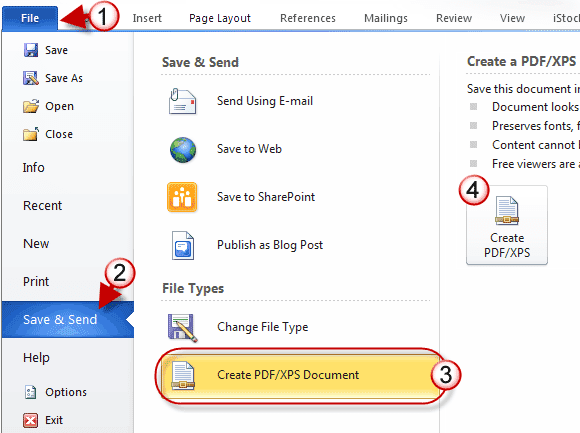
  • Then click on File tab and select Save & Send option from the drop down.
  • Then click on Create PDF/XPS Documents > Create PDF/XPS.
convert word to pdf
  • Now enter the file name and and click Publish to convert the document in PDF format.
Note: You can also optimize the quality of PDF file from the available option. Here Standard and Minimum Size two options are available. Choose any option as you need.
convert into pdf

The other documents created on Microsoft Office 2010 like Access, Excel and Power Point may also be converted into PDF using the same procedure. I have not tasted it, if it is possible then don't forget to share with us.


Stay with www.iTTimebd.com for more IT related Post

Friday, December 27, 2013

How to Convert Webpage to PDF online (Free!)

webpage to pdf
Everyday we surf many website in search of several information and document. Sometimes you may need to keep a copy of that information or document. If you don't find any download option in that website then can't get copy of that webpage. On the other hand if the text selection is also disabled in that site then can't also copy the text from that site. In such case the best idea is, save that webpage in a PDF file. In this post I'm gonna show how to convert and save webpage in PDF file.


There are several way and method, you can save a webpage as PDF file. But in this post I'm gonna use online method. And also there are several websites available by which you can convert and save webpage into PDF. Among them my personal choice is Web2PDF converter. Using this site you will be able to convert any webpage to PDF just by using it's URL. And its completely Free and no registration is also required as well. Lets see the procedure.


Note: PDF Options are available for members only. So, you need to register to enable the options.


Converting Webpage To PDF Online:
  • First go to this site Web2PDF.
  • Then enter the webpage URL that you're gonna convert. (e.g. http://www.ittimesbd.com)
  • Then click on the Convert to PDF button. It will start to create PDF.
  • Now when the PDF is ready click on the Download PDF button and save the file in your PC.
Note: You can also save the PDF file to your Google Docs account. To do so click on Save to Google Docs button.
how to convert webpage to pdf 


That's it, Now you can easily Convert and Download any webpage in PDF format.


Stay with www.iTTimebd.com for more IT related Post