Showing posts with label Windows 10 Features. Show all posts

Wednesday, March 30, 2016

Windows 10 Keyboard Shortcuts CheatSheet [PDF+JPG]

Windows 10 Shortcut Keys
In the middle part of the previous year Microsoft had released Widows 10, Beside bringing many new features this latest version also comes with a few new keyboard shortcuts to take advantage of new features like the virtual desktop and the action center. In today's post I'm sharing almost all the necessary Keyboard Shortcuts for Windows 10 including new keys.


For the convenience of yours I'm presenting all the shortcuts on a table in two format PDF and JPG. You’re probably familiar with some of these from previous versions of Windows, but even still I found this a good refresher and reference guide. From the Desktop of your Windows 10 PC apply the shortcuts.

Lets have a look at the sample of the Windows 10 Keyboard Shortcuts Cheat Sheet below.


  • Download Links of the Full Cheat Sheet are given Below.
  • Just Download the Zipped file and Unzip it you will get the Shortcuts Cheat Sheet in tow format PDF and JPG. 

Windows 10 Shortcut Keys


Download Links:

Please Share This Post 
Stay with techie-asif.blogspot.com for more IT related post

Saturday, September 5, 2015

How to Bring Photo Viewer Back in Windows 10!

Get Back Windows Photo Viewer
Recently while opening a Photo on my newly installed Windows 10 PC, I found that Photos are opening with newly added Windows Photo Application. Though this Photo App is very good, But to be honest I was very much used to with Windows Photo Viewer. And that is why I tried to find the Photo Viewer in Windows 10, but I didn't find it. But by Googling found a very easy solution. And today's post I'm gonna show you, how you can bring Windows Photo Viewer Back in Windows 10.

Related Post:


Actually Microsoft hasn't removed the Windows Photo Viewer from Windows 10, Microsoft only Disable the feature to forced the users to use the Photo App :(. But enabling the Windows Photo Viewer is very easy, All you need just to Download and Apply a very small Registry file on your PC. And most interestingly the Registry file is only 60 KB in size. So let's start the procedure...


Enabling Windows Photo Viewer:

  • First Download the Registry File from the link given below.
  • Then Extract the file in a Folder.
  • Now Double click on WPV.reg file and then Yes > Yes > OK

That's it, All Done :) Windows Photo Viewer will be enabled on you Windows 10 PC once the above steps are completed. Now Follow the steps below to open your Photos with Windows Photo Viewer...


How to Open Photos with Windows Photo Viewer:

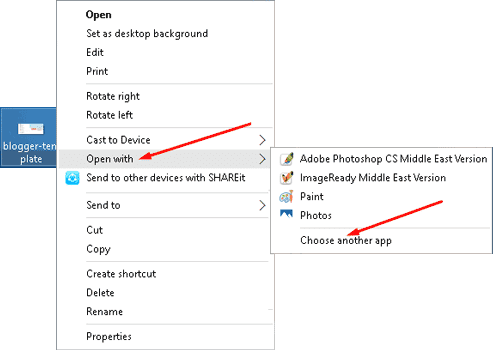
  • First click Right Mouse button on any Image.
  • Then click on Open with > Choose another app

Image Open With Option
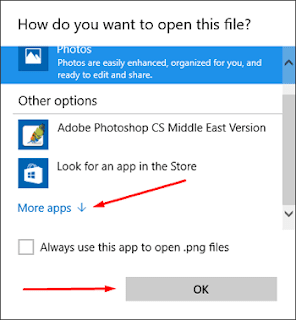
  • Then a new Window will open, Here click on More App > OK
Find Windows More App
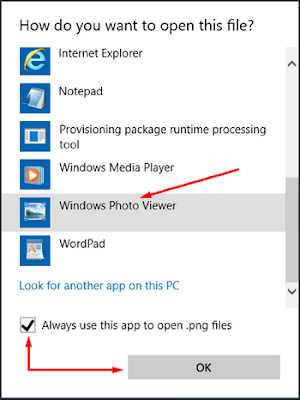
  • Now from the App List Select Windows Photo Viewer
  • Then Mark Always use this app option and click OK
Choose Windows Photo Viewer


In the above example I applied Windows Photo Viewer for the which are in .PNG format. As a result from now all the images in .PNG format will be opened with Windows Photo Viewer. But for the other image format like .JPG or .GIF you will have apply the same method shown in the above.

And if you have any question/quires regarding this post then don't hesitate to let me know by commenting below. :)


Download Link:

Please Share This Post or At-Least Press  G+1  on Every Post
Stay with www.iTTimesbd.com for more IT related post

Tuesday, September 1, 2015

Show My Computer Icon on Windows 10 Desktop!

show my computer on desktop

Hello Readers, It's been raining posts about Windows 10 on iTTimesbd.com since it launched. Today I'm gonna show you the steps of Showing My Computer Icon on Windows 10 Desktop. Previously I had shared another post for Windows 8. So, you might have a question that why this post again. Actually steps for Windows 10 and 8 are not same. And to Honest I have also faced problem while facing My Computer Icon on my Windows 10 PC.


Recently for unwanted reason I had to reinstall Windows 10 on my PC. And when the installation is completed I found that My Computer Icon is missing on the Desktop. Then I applied the steps I used on Windows 8 but it didn't worked. Actually Windows 10 is a combination on traditional and modern apps, that is why here steps for Showing My Computer Icon on Desktop is little bit different. Lets see the Procedure...

In Windows 10 My Computer Icon is shown in the name - This PC. Don't like the name ? No Problem. you can Rename This Icon :)


Showing My Computer on Windows 10 Desktop:

  • First got to your PC's Desktop. [Press Start Picture of the Start button+D]
  • Anywhere on Desktop click Right Mouse button and Choose Personalize.
PC Persinalise
  • Then on Personalize window click Theme on left panel.
  • Then here on the Right Panel click Desktop icon settings
Windows Theme option
  • Now a new window will open named Desktop Icon Settings.
  • Here Choose the Icons that you wanna Show on your PC's Desktop.
  • Finally click on Apply and then OK.
Desktop Icon Settings


That's it, All Done. Now go to your PC's Desktop, you will see that My Computer (This PC) icon is showing there :). Windows 10 is Full of new features and improvements. To Know More about the Windows 10 New Features Read the Complete Post from the link below...

Related Post:


And if you have any question/quires regarding this post then don't hesitate to let me know by commenting below. 


Please Share This Post or At-Least Press  G+1  on Every Post
Stay with www.iTTimesbd.com for more IT related post

Tuesday, August 25, 2015

What's New in Windows 10 [With Screenshot]

Windows 10 Feature
It is more than three weeks passed since the Microsoft launched their latest version - Windows 10. And people liked this new version of widows very much, because ​Windows 10 is full of new features and improvements. At very beginning I want say Sorry for being late with this post. Actually by this time, I have studying about the New Windows 10 Features and Testing them personally, so that I can write this post with proper information.

So, in this post you are gonna know about the New Windows 10 Features. Beside I will show discuss the improved features also. Let's have a look..


New Features of Windows 10:

Start Menu:

Start Menu

Previously with Windows 8 the removal of the long-standing Start menu left many users with a feeling of bemusement. But this time Microsoft understood the feeling of the users. And as they promised, they brought traditional Start Menu with new and improved look.

New Start Menu


This New Windows 10 Start Menu is the combination of old and new elements. The animation it takes from Windows 7  but sporting remnants of that Metro / Modern interface, and not only does this seem like a happy median, but Start menu tiles can also be re-sized.


Truly Unified Apps Store:

Apps Store

Windows 10 Microsoft introduced a new all in one Windows App Store. Windows New App Store Microsoft Allows consumers to source content for all devices running its software from one central point. Now you will have one store for all platform - Xbox, Windows Phone and Windows. And all the apps, music, video and other such effects will be plucked from the same portal.


Continuum Mode:

Windows 10 Continuum Mode


This is one of the most excellent feature. This is an one click feature which will turn you PC into Tablet. That is why it is mostly known as Tablet. But I don't know why it is named Continuum Mode. So, to experience Tablet atmosphere on your PC, just click on the Tablet Mode from Notification Menu, located at the right bottom corner of the PC's screen.


Cortana - Personal Search Assistance:

Cortana


This is one of the Most Advanced new feature of Windows 10. In Windows 10 you will have a new Personal Virtual Assistance to Search your PC. She will be right on your desktop. Ask her to set up a meeting or send an email to a friend. She can even find your files for you and tell you jokes. Select the search box and type what you want Cortana to do, or just select the microphone to talk with her instead.


Microsoft Edge - Browser:

Microsoft Edge


It is one of the fresh Inclusion. With the Windows 10 Microsoft introduced an all web browser in place of Internet Explorer. Microsoft Edge is the first browser that lets you take notes, write, doodle, and highlight directly on webpages. Use the reading list reading list icon to save your favorite articles for later, then read them in reading view Reading view icon. Plus, Cortana is built in to Microsoft Edge to help you do things faster and easier.


Enhanced Snap View:

Enhanced Snap View


The all-new Snap Assist UI allows “up to four apps to be snapped on the same screen”. This smart suggestions feature will indicate you that which open apps you should fill up empty desk space with, it’s a very intuitive all-round feature.


Task View:

Multitasking continues to be an integral aspect as we seek to perform numerous tasks concurrently, and with Windows 10, Microsoft has added a couple of new features to make multitasking even simpler and more fluid.

Task View


The all new Task View features will increase the experience of Multitasking on Windows 10. Task View button is located on the task bar. When you click on it, it will show all the Task running on your PC. You can add new Desktop here, you can also Add and Close the task from here.


My Experience with Windows 10:

Actually I'm the first person among my friends who started using Windows 10. And I have got Windows 10 upgrade on the second day after its official launched. My three weeks user experience is just amazing. In a Windows 10 is much more faster and smoother, and also the most user friendly Windows version.

So, you should keep yourself from this most advance Windows version. I'm leaving the download links of Windows 10 below. Get the Test of Windows 10, Hope you will like it. And Please Don't Forget to Share This Post With Your Friends :)


Related Links:

Please Share This Post or At-Least Press  G+1  on Every Post
Stay with www.iTTimesbd.com for more IT related post